This repository was archived by the owner on Oct 5, 2022. It is now read-only.
VerticalLayout
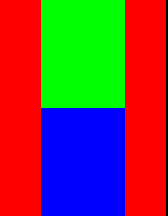
VerticalLayout allows you to add element ones below the others. If you add them using the top position attribute (the default one), they will be added downward. However, if you add them using the bottom position attribute, they will be added upward.
let layout = new VRUI.layout.VerticalLayout({
    background: 0xFF0000
});

let button1 = new VRUI.view.ImageButton(0x00FF00, {
    height: 0.5,
    width: 0.5,
});
let button2 = button1.clone(0x0000FF);

layout.add(button1, button2);
You should obtain something like:
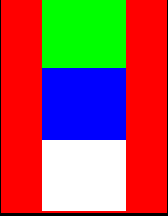
You can also play with the align property (which is top by default):
let layout = new VRUI.layout.VerticalLayout({
    background: 0xFF0000,
});

let button1 = new VRUI.view.ImageButton(0x00FF00, {
    height: 0.33,
    width: 0.5,
});
let button2 = button1.clone(0x0000FF);
let button3 = button1.clone(0xFFFFFF);

layout.add(button1, button2, button3);
Which gives:
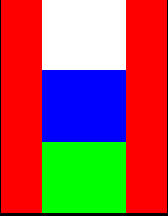
By changing the align property to bottom:
let layout = new VRUI.layout.VerticalLayout({
    background: 0xFF0000,
});

let button1 = new VRUI.view.ImageButton(0x00FF00, {
    height: 0.33,
    width: 0.5,
    align: 'bottom'
});
let button2 = button1.clone(0x0000FF);
let button3 = button1.clone(0xFFFFFF);

layout.add(button1, button2, button3);
And now, we obtain: