English | 简体中文
RyzenTuner provides a GUI for adjusting the power limits of Ryzen mobile processors. It also lets you tune the QoS level and priority of Windows processes to improve battery life and reduce fan noise.
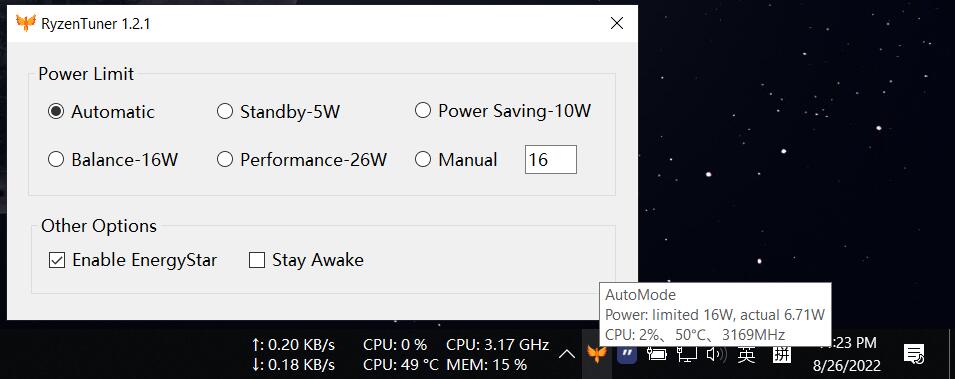
RyzenTuner automatically switches between different modes (Standby / Balanced / Performance) based on conditions such as AC power, battery, nighttime, and user activity.
Mode descriptions:
- Standby Mode: Uses the lowest power consumption and is suitable only for very light workloads.
- Balanced Mode: Offers the best balance between performance and power efficiency, and handles short bursts of work such as opening web pages or using Photoshop.
- Performance Mode: Designed for demanding tasks such as compiling software, gaming, or rendering.
You can download the prebuilt application from Releases.
If you want RyzenTuner to start automatically when you sign in to Windows, enable Launch at logon in the app.
RyzenTuner will create a per-user scheduled task and start itself with elevated privileges in the background.
Close RyzenTuner, then open RyzenTuner.exe.config and edit the corresponding setting. For example, SleepMode controls Standby Mode, so you can change its value directly.
Example: change Standby Mode from 1 W to 2 W
Before
<setting name="SleepMode" serializeAs="String">
    <value>1</value>
</setting>
After
<setting name="SleepMode" serializeAs="String">
    <value>2</value>
</setting>If you like this project or use it in your daily workflow, please consider giving it a star. Thanks!
- Archeb/RyzenTuner: A project built on top of this one
- FlyGoat/RyzenAdj: A power management tool for Ryzen mobile processors
- imbushuo/EnergyStar: A Windows process scheduling tool that may help improve battery life (not tested)
- LibreHardwareMonitor: Provides hardware monitoring information
- dahall/Vanara: A collection of .NET libraries that wrap many P/Invoke calls to native Windows APIs
Thanks to the projects and authors listed above.
RyzenTuner is licensed under MIT.