

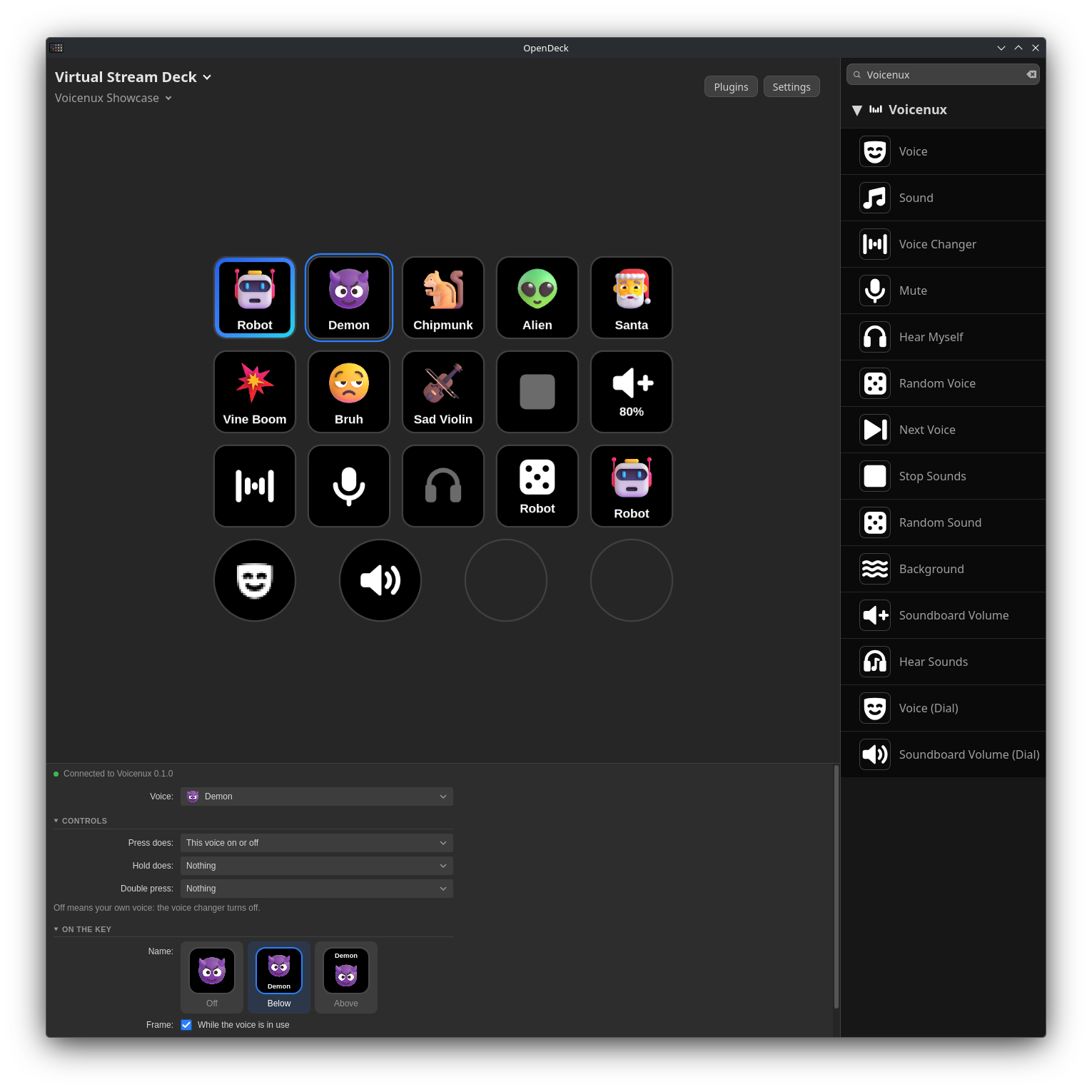
Voices with their pictures, the soundboard, mute, push to talk and push to change your voice for Voicenux, on OpenDeck.
Install | How to use | Actions | Report a bug

You need OpenDeck 2 and Voicenux 0.1.0 or newer, on Linux with an x86_64 or ARM64 CPU.
Download the .streamDeckPlugin file from the latest release and install it on the Plugins page of OpenDeck.
From source
You need Rust.
git clone https://github.com/voicenux/voicenux-plugin.git
cd voicenux-plugin
make install
Then restart OpenDeck. With the OpenDeck Flatpak, install into its folder:
make install PLUGINS=~/.var/app/me.amankhanna.opendeck/config/opendeck/pluginsmake package builds dist/de.felitendo.voicenux.streamDeckPlugin for x86_64 and ARM64 (it needs zig and cargo-zigbuild).
- In Voicenux, open Settings → Other apps and turn on Let other apps control Voicenux.
- Voicenux asks if the plugin may control it. Click Allow.
- In OpenDeck, drag an action from Voicenux onto a key.
- In the settings of the key, pick a voice or a sound.
Voice keys show the picture of their voice, with a blue frame while it is in use. The frame turns gray while the voice changer is off. Sound keys get the frame while they play.
Say a Sound finds sounds by voice. Hold the key and say a sound, like "vine boom". Others do not hear you while you hold it. Voicenux finds the sound most people liked on MyInstants and puts it on the key, your soundboard stays as it is. Press the key to play it. Not the right one? Press it twice quickly within 10 seconds for the one with the next most likes. After that, quick presses only play it, so you can spam it. Hold it again for another one. Say a Voice does the same for your voices: say "Darth Vader" and it uses that voice. It only picks out of the voices you have in Voicenux, it does not search online. Both need Voicenux 0.4.0 or newer, which downloads its speech recognition the first time (970 MB). It runs on your computer, nothing you say goes online, only the words it searches for.
If Voicenux is not running, the keys show Voicenux off. If it does not let other apps in, they show API off, and the settings of any key have a button that opens the settings of Voicenux. A key with a yellow dot still needs its settings.
All 17 actions
| Action | What it does |
|---|---|
| Voice | Turn a voice on or off (off is your own voice), use it only while you hold the key, or star it. |
| Sound | Play a sound from the start, on top, or play and stop it. |
| Voice Changer | Turn the voice changer on or off, or push to change your voice. |
| Mute | Mute or unmute your microphone, push to talk or push to mute. |
| Hear Myself | Hear your changed voice in your headphones. |
| Random Voice | A random voice, out of your favorites when you have two or more. |
| Next Voice | The next or previous voice, out of your favorites when you have some. Can show the voice in use. |
| Stop Sounds | Stop all sounds that play. White while one plays. |
| Random Sound | A random sound, never the same one twice in a row. Shows a dice, or already the sound that comes next. |
| Say a Sound | Hold and say a sound: it finds the one most people liked on MyInstants and keeps it. Press to play it, twice right after for the next one. |
| Say a Voice | Hold and say one of your voices to use it. Press to turn it on or off. |
| Background | Background sounds of the voice on or off. |
| Soundboard Volume | Make the sounds louder, quieter or set their volume. Hold to keep going. |
| Hear Sounds | Hear the sounds yourself too. |
| Voice (Dial) | Turn to pick a voice (with its picture), press to use it. Only favorites if you like. |
| Sound (Dial) | Turn to pick a sound (with its picture), press to play it. Only favorites if you like. |
| Soundboard Volume (Dial) | Turn for the soundboard volume, press to stop all sounds. |
Most keys can do one thing on press, another on hold and another on double press. Keys that turn something on or off can also only turn it on, or only off (that helps in multi actions), or keep it on only while you hold the key.
The pictures of voices and sounds come from Voicenux: Fluent Emoji by Microsoft (MIT). Thanks to the OpenDeck developers.
BSD-3-Clause.