
A ready-to-run HashiCorp Vault playground. Open it, and you have a running Vault with the tools around it.
🌍 In GitHub Codespaces, your Vault is live on the internet. It gets its own HTTPS URL, so you can quickly test integrations with CI pipelines, cloud services, webhooks and other systems. See how ↓



One click gets you a running Vault in your browser, with nothing to install:

Prefer your own machine? See Getting started.
This is a Dev Container for IBM HashiCorp Vault. When it opens, Vault is already running in dev mode, it is unsealed, you are logged in, and the CLI, UI, API, Terraform and the Vault MCP server are all set up. You don't need to install anything locally, follow setup guides or chase versions.
 __     __          _ _
 \ \   / /_ _ _   _| | |_
  \ \ / / _` | | | | | __|
   \ V / (_| | |_| | | |_
    \_/ \__,_|\__,_|_|\__|

 * Vault v1.20.x: running
 * Vault UI:      http://localhost:8200/ui
 * Root Token:    root
| 🛠️ Engineers | Learn Vault, try out policies, auth methods and secrets engines, and develop against a real Vault API in seconds. If you break it, rebuild and it's clean again. |
| ⚙️ CI / GitHub Actions | Use the same image in your pipelines to run integration tests against a real Vault, so your laptop and CI behave the same. |
| 📊 Decision makers, evaluators and sales | A hands-on proof of concept. Instead of reading datasheets, open the UI, store a secret, encrypt data, lock down access with a policy, and get answers to questions about Vault quickly. This makes it easier to decide on Vault. |
Everything below is already installed when the container opens.
| Tool | Version | What it's for | Try it |
|---|---|---|---|
| Vault server + CLI | latest image, set with the VAULT_VERSION build arg |
Secrets management. Runs in the background in dev mode: in-memory, unsealed, root token root. Its logs are in /tmp/vault.log |
vault status |
| Vault UI | Same as Vault | Web console for secrets, policies and auth methods. Opens in your browser automatically | localhost:8200/ui |
| Vault MCP Server | 0.2.0, set with the VAULT_MCP_SERVER_VERSION build arg |
Lets AI assistants (Claude Code, Copilot agent mode) operate Vault through plain-language prompts | vault-mcp-server --version |
| Terraform | Latest release when the image is built | Manage Vault as code with the Vault provider | terraform version |
HCP CLI (hcp) |
Latest release when the image is built | Sign in to HashiCorp Cloud Platform and manage organisations, projects, IAM and service principals | hcp auth login |
| Tool | Version | What it's for | Try it |
|---|---|---|---|
| pre-commit | Alpine package | Runs the git hooks in .pre-commit-config.yaml on every commit |
pre-commit run --all-files |
| gitleaks | Latest release when the image is built | Finds leaked secrets (Vault tokens, cloud keys) before they reach Git history | gitleaks git --redact |
| shellcheck | Alpine package | Finds bugs in shell scripts | shellcheck script.sh |
| Tool | Version | What it's for | Try it |
|---|---|---|---|
GitHub CLI (gh) |
Alpine package | Repos, PRs, Issues and Actions from the terminal | gh auth login |
| git, gnupg, openssh | Alpine package | Version control, signed commits and SSH. Your host's ~/.ssh and ~/.gnupg are mounted into the container |
git log --show-signature |
| jq | Alpine package | Slice and filter Vault's JSON output | vault secrets list -format=json | jq 'keys' |
| curl | Alpine package | Call the Vault HTTP API directly | curl -s $VAULT_ADDR/v1/sys/health | jq |
| openssl | Alpine package | Inspect certificates, generate keys and random data | openssl rand -base64 32 |
| vim, less, bash-completion | Alpine package | Editing, paging and tab completion | vault <TAB><TAB> |
| Command | What it does | Example |
|---|---|---|
vexport |
Sets a variable in every open terminal | vexport VAULT_NAMESPACE=admin |
vunset |
Removes a variable from every open terminal | vunset VAULT_NAMESPACE |
vault login |
Changes the token for all terminals, because it's stored in ~/.vault-token |
echo root | vault login - |
| Welcome banner | Shows Vault status, the UI URL, your current token and common commands in every new terminal | Open a new terminal |
Tip
Show every installed version at once:
for t in vault terraform hcp vault-mcp-server gh pre-commit gitleaks; do printf '%-17s ' "$t"; { $t --version 2>/dev/null || $t version; } | grep -m1 -E '[0-9]+\.[0-9]+'; done| Extension | Why |
|---|---|
hashicorp.hcl |
Syntax highlighting for Vault policies and config (.hcl) |
hashicorp.terraform |
Terraform language server, plus the HCP Terraform view |
owenfarrell.vscode-vault |
Vault browser in the sidebar: browse, read, write and copy secrets without leaving VS Code |
hashicorp.sentinel |
Syntax highlighting for Sentinel policy-as-code (Vault Enterprise / HCP) |
hashicorp.vault-radar |
HCP Vault Radar: flags hard-coded secrets in your code as you type. Needs a Vault Radar licence |
anthropic.claude-code |
Claude Code AI assistant, works with the Vault MCP server |
redhat.vscode-yaml |
YAML editing for compose files and GitHub workflows |
johnpapa.vscode-peacock |
The Vault-yellow theme, so you always know you're in the Vault container |
nhoizey.gremlins |
Finds invisible or odd characters that break configs |
dbaeumer.vscode-eslint, esbenp.prettier-vscode |
Linting and formatting |
flowchart LR
    subgraph Host["💻 Your machine / Codespace"]
        VSC["VS Code"]
        Browser["🌐 Browser<br/>localhost:8200/ui"]
    end

    subgraph DC["🐳 Dev Container: hashicorp/vault"]
        Vault["🔐 Vault dev server<br/>:8200"]
        CLI["vault CLI<br/>terraform · hcp · gh · jq"]
        MCP["🤖 vault-mcp-server"]
        WS["📁 /app<br/>(your repo)"]
    end

    VSC -- "Remote: Dev Containers" --> DC
    Browser -- "port 8200" --> Vault
    CLI --> Vault
    MCP --> Vault
    VSC -. "Claude Code / Copilot" .-> MCP
- Click Open in GitHub Codespaces.
- Wait for the container to build. When it's ready, a terminal opens with the Vault welcome banner, showing the UI URL, your token and handy commands.
- Open a new terminal (Ctrl+Shift+`) and start using Vault. Every new terminal shows the banner.
Prerequisites: Docker Desktop (or Rancher / Podman) and VS Code with the Dev Containers extension.
git clone git@github.com:star3am/ibm-hashicorp-vault-devcontainer.git
code ibm-hashicorp-vault-devcontainer
When VS Code prompts you, click Reopen in Container, or run F1 → Dev Containers: Reopen in Container.
Note
The compose file mounts ~/.ssh and ~/.gnupg from your host so git push and commit signing work inside the container. Make sure both folders exist on your host.
The Vault UI opens in a browser tab automatically when the container starts. If it doesn't, for example because a pop-up blocker stopped it, open http://localhost:8200/ui. In Codespaces, use the Ports tab and click the globe icon next to Vault UI & API. Then choose Token and enter root.
Every Codespace gives Vault its own HTTPS address:
https://<your-codespace-name>-8200.app.github.dev
The welcome banner shows your exact URL. The port is private to start with: only you, signed in to GitHub, can open it. To let other systems reach it, such as a GitHub Actions workflow, a cloud function, a webhook or a colleague's laptop, make the port public:
- Ports tab → right-click Vault UI & API (8200) → Port Visibility → Public
- or, from a terminal signed in with
gh:gh codespace ports visibility 8200:public -c $CODESPACE_NAME
Anything can then use it like any other Vault:
export VAULT_ADDR=https://<your-codespace-name>-8200.app.github.dev
curl -s $VAULT_ADDR/v1/sys/health | jq
vault kv get secret/hello
This works well for live demos, trying out the Vault integration of a SaaS product or a Kubernetes cluster, or running a CI pipeline against a real Vault without building any infrastructure.
Caution
A public port means anyone with the URL can reach your Vault, and dev mode's root token root is well known. Before making the port public, replace it:
vault token create -policy=root -orphan -field=token | vault login -   # new, secret root token
vault token revoke root # the well-known one stops working- Give external systems narrowly scoped tokens (see the policies example in the guided tour), never your root token.
- Use test data only. Dev mode keeps everything in memory without TLS inside the container.
- Set the port back to Private when you're done, or stop the Codespace. Codespaces also stop on their own after a period of inactivity.
- After revoking
root, the Vault MCP server (configured withroot) stops working until the container restarts. A restart also brings back a fresh dev Vault withroot.
You can add Vault to any existing project. The .devcontainer/ folder is self-contained and all its paths are relative, so you only need to copy that folder. Your repo is mounted at /app inside the container, whatever it's called.
Run this from the root of your repo:
curl -fsSL https://github.com/star3am/ibm-hashicorp-vault-devcontainer/archive/refs/heads/main.tar.gz \
  | tar -xz --strip-components=1 \
      ibm-hashicorp-vault-devcontainer-main/.devcontainer \
      ibm-hashicorp-vault-devcontainer-main/.pre-commit-config.yaml
To get only the container, without the git hooks, drop the .pre-commit-config.yaml line.
- Download this repo as a ZIP, or clone it.
- Copy the
.devcontainer/folder into the root of your repo. - (Optional) Copy
.pre-commit-config.yamlto get the commit checks.
git add .devcontainer
git commit -m "Add HashiCorp Vault Dev Container"
Open the repo in VS Code and click Reopen in Container, or push it and launch a Codespace. Vault is running and your code is at /app.
Your repo should end up like this:
your-repo/
├── .devcontainer/            ← copied as-is, no edits needed
│   ├── devcontainer.json
│   ├── docker-compose.yml
│   ├── Dockerfile
│   └── etc/
├── .pre-commit-config.yaml   ← optional
└── ...your code
Important
Already have a .devcontainer/ folder? Don't overwrite it. Copy this one to .devcontainer/vault/ instead. VS Code will then ask which container to open. Make one edit: in docker-compose.yml, change the "../:/app" volume to "../../:/app", since the folder is now one level deeper.
Good to know
- Git hooks are only installed if your repo has a
.pre-commit-config.yaml. Repos without one aren't affected. - Your
.gitignore: copy the Vault and Terraform blocks from ours so tokens and state files never get committed. - Workspace colours: the Vault-yellow theme is set in
devcontainer.json, so it comes with the folder automatically. - Port 8200 must be free on your machine. Run one Vault dev container at a time, or change the port mapping in
docker-compose.yml.
The welcome banner shows these every time you open a terminal.
vault status                              # Is Vault up? Sealed? Version?
vault secrets list                        # What secrets engines are enabled?
vault kv put secret/hello foo=bar         # Write a secret
vault kv get secret/hello                 # Read it back
vault print token                         # Which token am I using?
gh auth login                             # Log in to GitHub
hcp auth login # Log in to HashiCorp Cloud PlatformEvery terminal shares one Vault session:
vault loginin any terminal applies to all terminals. The token lives in~/.vault-token;VAULT_TOKENis deliberately not set.vexportandvunsetset or remove a variable in every terminal, including ones already open. The change takes effect at their next prompt.
vexport VAULT_NAMESPACE=admin             # Set in all terminals
vexport VAULT_ADDR=https://my-vault:8200  # Point every terminal somewhere else
vunset  VAULT_NAMESPACE                   # Remove from all terminals
Shared variables are stored in ~/.vault.env.
These steps cover what evaluators usually ask about. Run them in the terminal, then look at the result in the UI.
1. 🗝️ Store and version secrets (KV v2): "Where do our secrets live, and can we see the history?"
vault kv put secret/myapp/db username=app password=v1
vault kv put secret/myapp/db username=app password=v2
vault kv get secret/myapp/db                 # latest version
vault kv get -version=1 secret/myapp/db      # previous version
vault kv metadata get secret/myapp/db        # full version history
2. 🛡️ Least-privilege access with policies: "Can we restrict who sees what?"
# A policy that can only READ one secret
vault policy write readonly - <<'EOF'
path "secret/data/myapp/*" {
  capabilities = ["read"]
}
EOF

# A human user that gets that policy
vault auth enable userpass
vault write auth/userpass/users/alice password=s3cret policies=readonly

# Log in as alice without replacing your root session
ALICE=$(vault login -token-only -method=userpass username=alice password=s3cret)

VAULT_TOKEN=$ALICE vault kv get secret/myapp/db             # ✅ allowed
VAULT_TOKEN=$ALICE vault kv put secret/myapp/db password=x  # ❌ permission denied
3. 🔒 Encryption as a Service (Transit): "Can apps encrypt data without managing keys?"
vault secrets enable transit
vault write -f transit/keys/orders

CT=$(vault write -field=ciphertext transit/encrypt/orders \
      plaintext=$(echo -n "4111-1111-1111-1111" | base64))
echo "$CT"                                    # vault:v1:...  (safe to store in your DB)

vault write -field=plaintext transit/decrypt/orders ciphertext="$CT" | base64 -d

vault write -f transit/keys/orders/rotate     # Rotate the key; old data still decrypts
4. 🧾 Audit everything: "Can we prove who accessed what?"
vault audit enable file file_path=/tmp/vault-audit.log
vault kv get secret/myapp/db > /dev/null
tail -n 1 /tmp/vault-audit.log | jq '.request | {path, operation, remote_address}'
5. 🏗️ Vault as Code with Terraform: "Can we manage this through GitOps?"
# main.tf
provider "vault" {}   # reads VAULT_ADDR and ~/.vault-token

resource "vault_mount" "kv" {
  path = "team-a"
  type = "kv-v2"
}

resource "vault_policy" "team_a" {
  name   = "team-a"
  policy = <<-EOT
    path "team-a/*" { capabilities = ["create", "read", "update", "list"] }
  EOT
}
terraform init && terraform applyTip
Made a mess? Dev mode keeps everything in memory. Rebuild or restart the container to get a clean Vault.
The Vault MCP Server is installed at /usr/local/bin/vault-mcp-server. It lets an AI assistant manage mounts, read and write secrets, and so on, through plain-language prompts such as:
"List all secrets engines, then create a KV v2 mount called
paymentsand add a secretapi-keyto it."
VS Code (Copilot agent mode) is preconfigured in devcontainer.json, so nothing needs doing.
Claude Code: register it once:
claude mcp add vault \
  -e VAULT_ADDR=http://127.0.0.1:8200 \
  -e VAULT_TOKEN=root \
  -- vault-mcp-server stdio
Then run /mcp inside Claude Code to confirm it's connected.
Warning
The MCP server is configured with the root token for convenience in this sandbox. Never give an AI assistant a root token against a real Vault. Use a scoped token with a narrow policy.
The HashiCorp Vault extension (owenfarrell.vscode-vault) adds a Vault view to the Activity Bar, so you can browse and edit secrets as a tree. This is useful in demos for people who would rather not use the terminal.
- Open the Vault view in the Activity Bar and add a server:
http://127.0.0.1:8200. - Choose native (token) authentication and use
root. You can also use userpass with a user from the guided tour. - Expand
secret/to browse, read, write and copy secrets. Copied values are cleared from the clipboard after 60 seconds.
The HCP Vault Radar extension scans the code you're writing for hard-coded secrets, such as API keys, passwords and tokens. It can also tell you whether a leaked secret is already stored in Vault. It needs a Vault Radar licence. Without one it stays installed and does nothing, so you can ignore it.
To activate it, do one of the following:
- Open Settings, search for Vault Radar, and paste your licence key or the path to your licence file.
- In GitHub Codespaces, add a Codespaces secret named
VAULT_RADAR_LICENSE. Codespaces injects it as an environment variable, and the extension reads that variable.
Note
Vault Radar is published only on the Visual Studio Marketplace. VS Code forks that use Open VSX, such as Cursor or VSCodium, will skip it.
The hcp CLI handles your HCP account: sign-in, organisations, projects, IAM and service principals.
hcp auth login                           # opens a browser / prints a login URL
hcp profile init                         # pick your organisation and project
hcp projects list
hcp iam service-principals list
For CI, sign in non-interactively with a service principal:
hcp auth login --client-id="$HCP_CLIENT_ID" --client-secret="$HCP_CLIENT_SECRET"An HCP Vault Dedicated cluster is a normal Vault behind a URL, so you talk to it with the vault CLI, the UI, Terraform, the MCP server and the sidebar browser, just like the local dev server. Point every terminal at it:
vexport VAULT_ADDR=https://<your-cluster>.hashicorp.cloud:8200
vexport VAULT_NAMESPACE=admin            # HCP Vault's top-level namespace
vault login                              # paste an admin token from the HCP portal
vault status
To switch back to the local dev server:
vunset VAULT_NAMESPACE
vexport VAULT_ADDR=http://127.0.0.1:8200
echo root | vault login -The pre-commit git hooks install automatically when the container starts. Every git commit runs the checks in .pre-commit-config.yaml:
| Check | Catches |
|---|---|
| gitleaks | Vault tokens, cloud keys and other secrets before they reach Git history |
| detect-private-key | Accidentally staged private keys |
| shellcheck | Bugs in shell scripts |
| check-yaml / check-json | Broken docker-compose.yml, workflows and devcontainer.json |
| terraform fmt | Unformatted Terraform (*.tf) |
| vault policy fmt | Unformatted Vault policies under policies/*.hcl |
| Whitespace, line-ending and end-of-file fixers | Noisy diffs |
pre-commit run --all-files     # run every check now
pre-commit autoupdate          # bump hook versions
git commit --no-verify # skip hooks (emergencies only!)Run your tests inside the exact same environment with devcontainers/ci:
# .github/workflows/vault-tests.yml
name: Vault integration tests
on: [push, pull_request]

jobs:
  test:
    runs-on: ubuntu-latest
    steps:
      - uses: actions/checkout@v4

      - name: Run tests in the Vault Dev Container
        uses: devcontainers/ci@v0.3
        with:
          runCmd: |
            vault status
            vault kv put secret/ci hello=world
            vault kv get secret/ci
# ./run-your-tests.sh| What | Where | Default |
|---|---|---|
| Vault version | VAULT_VERSION build arg in .devcontainer/Dockerfile |
latest |
| Vault MCP Server version | VAULT_MCP_SERVER_VERSION build arg |
0.2.0 |
| Root token | VAULT_DEV_ROOT_TOKEN_ID in the Dockerfile |
root |
| Port | docker-compose.yml / devcontainer.json |
8200 |
| Extensions & theme | customizations.vscode in devcontainer.json |
Vault yellow #ffcf25 |
After changing any of these, run F1 → Dev Containers: Rebuild Container.
.
├── .devcontainer/
│   ├── devcontainer.json          # VS Code config, extensions, MCP server, ports
│   ├── docker-compose.yml         # Runs Vault in dev mode, mounts your repo + ssh/gpg
│   ├── Dockerfile                 # hashicorp/vault + tools + Terraform + MCP server
│   └── etc/
│       ├── profile.d/vault-env.sh     # vexport / vunset shared-terminal helpers
│       └── update-motd.d/00-header    # The welcome banner
├── .gitignore
├── .pre-commit-config.yaml        # Git hooks: gitleaks, shellcheck, YAML/JSON checks
└── README.md
| Symptom | Fix |
|---|---|
| Banner says not reachable | Vault may still be starting: wait a few seconds and run vault status. If it stays down, cat /tmp/vault.log shows why. |
permission denied everywhere |
Your token changed. Run vault print token, then echo root | vault login -. |
| Port 8200 already in use | Another Vault is running on your host. Stop it, or change the port mapping in docker-compose.yml. |
| Variables "stuck" from earlier | Run cat ~/.vault.env, then vunset <NAME>. |
git push fails inside the container |
Check that ~/.ssh exists on the host and holds your key, or run gh auth login. |
This container runs Vault in dev mode: in-memory storage, auto-unsealed, TLS disabled, and a well-known root token. That is ideal for learning, demos and CI. It is never suitable for production or real secrets. For production, see the Vault production hardening guide or use HCP Vault Dedicated.
- 📖 Vault documentation
- 🎓 Vault tutorials
- 🤖 Vault MCP Server
- 🏗️ Terraform Vault provider
- 🐳 Dev Containers specification
Inspired by:
- star3am/hashiqube: HashiQube, a hands-on DevOps lab that runs every HashiCorp product in a GitHub Codespace or Docker container
- hashicorp/vault#31578: Feature: adding a Dev Container to Vault, my PR to the Vault project
- btkrausen/vault-codespaces
- star3am/k3s-devcontainer
My name is Riaan Nolan. I'm a DevOps engineer, born in South Africa and now based in Brisbane, Australia. I started as a web developer in 2000, moved into systems administration, and since then have focused on automation, and on infrastructure and configuration as code. Along the way I've worked for multinational companies in Portugal, Germany, China, South Africa, the United States and Australia, often with distributed teams. I was a Director of DevOps in South Africa, then moved to Australia and went back to hands-on engineering.
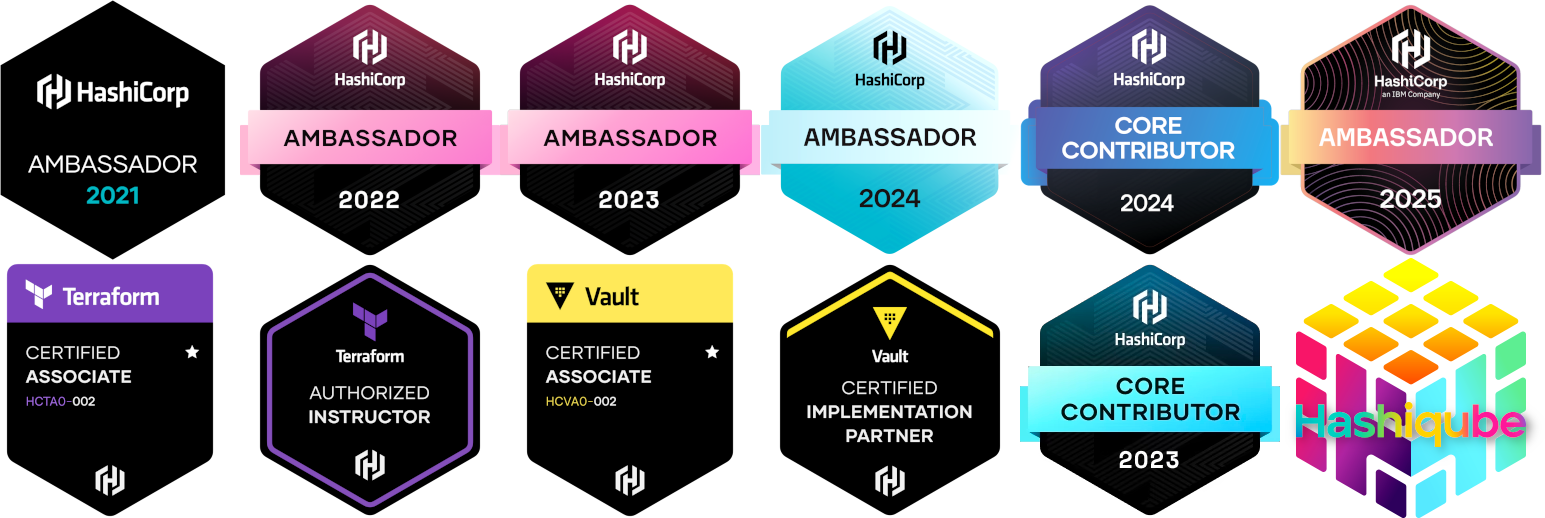
I've been a HashiCorp Ambassador since 2021 until 2025 and I'm a HashiCorp Core Contributor and Certified Terraform Instructor, with Vault and Terraform certifications. I'm passionate about the DevOps movement and about building proof-of-concept projects that let people learn by doing. That's why I created HashiQube, and it's the idea behind this Super Dev Container too.
Connect with me on LinkedIn, see my certifications on Credly, or find my talks on Sessionize.
Made with 💛 by Riaan Nolan