



Integration for GE WiFi-enabled appliances into Home Assistant. This integration currently supports the following devices:
- Fridge
- Oven
- Dishwasher / F&P Dual Dishwasher
- Laundry (Washer/Dryer)
- Whole Home Water Filter
- Whole Home Water Softener
- Whole Home Water Heater
- A/C (Portable, Split, Window, Built-In)
- Range Hood
- Advantium
- Microwave
- Opal Ice Maker
- Coffee Maker / Espresso Maker
- Beverage Center
Forked from Andrew Mark's repository.
Unfortunately, I'm pretty much at the end of what I can do without assistance from others with these devices that can help provide logs. I'll do what I can to make updates if there's something broken, but I am not really able to add new functionality if I can't get a little help to do so.
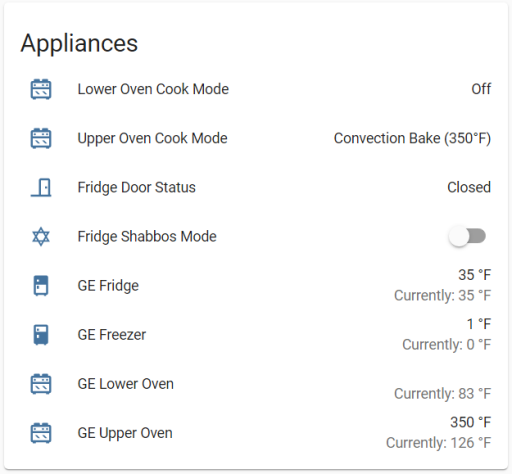
Entities card:
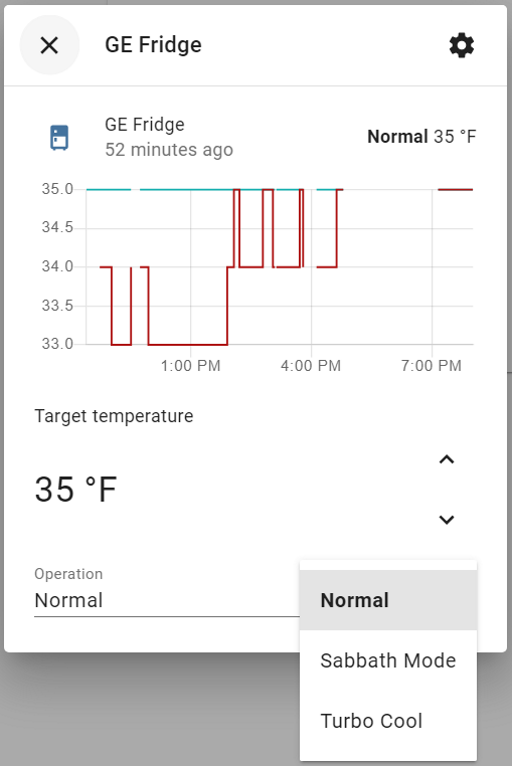
Fridge Controls:
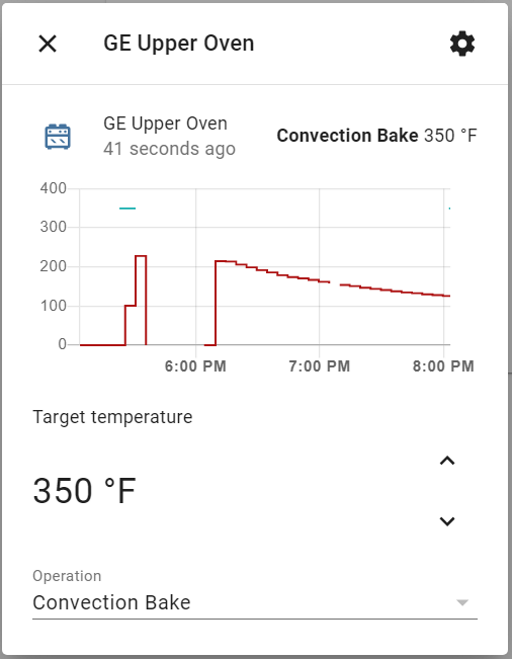
Oven Controls:
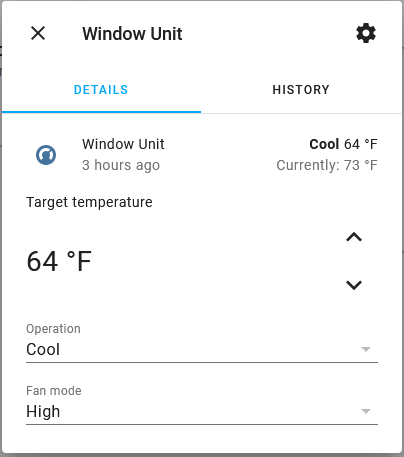
A/C Controls:
Range hoods expose native fan and light entities when the appliance reports hood fan speed and light level controls. These entities are intended to work better with Home Assistant dashboards, voice assistants, and the HomeKit Bridge than the lower-level select entities. Hood fans expose low, medium, and high as regular fan speeds; boost is exposed as a preset mode when available.
The existing hood fan speed and light level select entities remain available for compatibility, but are disabled by default for new entity registry entries. Re-enable them from the entity settings if you use them in dashboards, scripts, or automations. For the best HomeKit experience, expose the fan and light hood entities to the HomeKit Bridge and exclude any helper switches or select entities that were previously used to represent individual hood modes.
- Using the tool of choice open the directory (folder) for your HA configuration (where you find
configuration.yaml). - If you do not have a
custom_componentsdirectory (folder) there, you need to create it. - In the
custom_componentsdirectory (folder) create a new folder calledge_home. - Download all the files from the
custom_components/ge_home/directory (folder) in this repository. - Place the files you downloaded in the new directory (folder) you created.
- Restart Home Assistant
- In the HA UI go to "Configuration" -> "Integrations" click "+" and search for "GE Home"
Please follow directions here, and use https://github.com/simbaja/ha_gehome as the repository URL.
Configuration is done via the HA user interface. You need to have your device registered with the SmartHQ website.
Once the HACS Integration of GE Home is completed:
- Navigate to Settings --> Devices & Services
- Click Add Integration blue button on the bottom-right of the page
- Locate the GE Home (SmartHQ) "Brand" (Integration)
- Open a new browser tab and navigate to https://accounts.brillion.geappliances.com where you can verify your username/password (helpful) but more importantly Accept the TermsOfUseAgreement (required!)
- If terms acceptance or multi-factor authentication (MFA) is required, a specific error message will guide you to complete those steps in the SmartHQ app before retrying.
- Click on the integration, and you will be prompted to enter a Username, Password and Location (US or EU)
- Enter the email address you used to register/connect your device as the Username
- Same with the password
- Select the region you registered your device in (US or EU).
- Once you submit, the integration will log in and get all your connected devices.
- You can define in which area you device is, then click Finish
- Your sensors should appear as sensor.<serial_number>_<sensor_function> ie: sensor.fs12345678_dishwasher_cycle_name
Please click here for change information.