Real Time Event System
SuperLocalMemory notifies you the instant anything changes — a memory saved from Cursor, a graph refresh triggered by Claude, an agent connecting from Windsurf. No polling, no page refreshes, no guesswork. Just a live stream of everything happening across your AI tools.
Keywords: real-time events, live dashboard, event stream, agent monitoring, SSE, memory notifications, multi-tool sync
When you use multiple AI tools at once — Claude in one window, Cursor in another, Windsurf in a third — your memory system is constantly being read and written from all directions. Without real-time events, you have no visibility into what's happening. With them, you get a live picture of your entire AI workflow.
| Without Events | With Events |
|---|---|
| "Did that memory save?" | See it appear in the dashboard instantly |
| "Which tool wrote this?" | Every event shows the source tool |
| "Is Cursor connected?" | Agent status visible at all times |
| "When was this changed?" | Exact timestamp on every event |
Every meaningful operation in SuperLocalMemory fires an event. Here are the events you'll see:
| Event | When It Fires |
|---|---|
memory_stored |
A new memory is saved — from any tool |
memory_recalled |
A search is performed |
memory_updated |
An existing memory is edited |
memory_deleted |
A memory is removed |
graph_built |
The knowledge graph is rebuilt |
agent_connected |
A new AI tool connects |
agent_disconnected |
A tool disconnects |
profile_switched |
The active profile changes |
session_started |
A new session begins |
Events are emitted regardless of which tool triggered the action. If Cursor saves a memory, Claude Desktop sees the event. If you delete something from the CLI, the dashboard reflects it immediately.
There are three ways to receive events, from zero-code to fully custom.
Open the Live Events tab in your dashboard. You'll see a real-time stream of every event as it happens — timestamp, source tool, event type, and details. No setup required.
# Launch the dashboard
python ~/.claude-memory/ui_server.py
# Then open: http://localhost:8765
# Navigate to the "Live Events" tab
Filter the stream by event type, source tool, or time range. Click any event to expand its full details.
Connect directly to the event stream from any application or script:
const events = new EventSource('http://localhost:8765/events/stream');

events.onmessage = (e) => {
  const event = JSON.parse(e.data);
  console.log(`[${event.type}] from ${event.source_tool}`);
};
The connection stays open and events push to your client as they occur. Works in any browser or Node.js environment.
If you prefer a simpler pull-based approach, fetch recent events on demand:
# Get the 10 most recent events
curl http://localhost:8765/api/events?limit=10

# Get event statistics
curl http://localhost:8765/api/events/statsRegister a callback URL and SuperLocalMemory will POST events to your endpoint as they occur — useful for triggering external workflows, sending notifications, or integrating with automation tools.
Every event follows the same shape, making them easy to parse and act on:
{
  "type": "memory_stored",
  "timestamp": "2026-01-15T10:23:45Z",
  "profile": "work",
  "source_tool": "cursor",
  "data": {
    "memory_id": 42,
    "tags": ["fastapi", "auth"],
    "importance": 7
  }
}| Field | Description |
|---|---|
type |
The event name (e.g., memory_stored, agent_connected) |
timestamp |
ISO 8601 timestamp, always in UTC |
profile |
Which profile was active when the event fired |
source_tool |
The tool that triggered the event (e.g., cursor, claude, cli) |
data |
Event-specific details — memory ID, tags, agent info, etc. |
Real-time events open up a range of practical workflows:
Live dashboard monitoring Watch all your AI tools working in parallel. See Claude saving architectural decisions while Cursor recalls context — all in one stream.
Cross-tool awareness When one tool saves a memory, every other connected tool can immediately see it. No manual sync, no duplicated effort.
Custom notifications
Build a small script that alerts you when a memory tagged deployment is saved, or when a specific agent connects.
Audit trail Every memory operation across every tool is logged with timestamp and source. Know exactly what happened, when, and from where.
External workflow triggers Use SSE or webhooks to trigger CI pipelines, send Slack messages, or update external systems when specific events fire.
The Live Events tab gives you a real-time window into your memory system without writing a single line of code.
What you see:
- A rolling stream of events, newest at the top
- Color-coded by event type — saves in green, deletes in red, agent connections in blue
- Source tool displayed on every event
- Exact timestamp for each entry
What you can do:
- Click any event to expand full details
- Filter by event type (e.g., show only
memory_storedevents) - Filter by source tool (e.g., show only events from Cursor)
- Filter by time range (last hour, last day, custom)
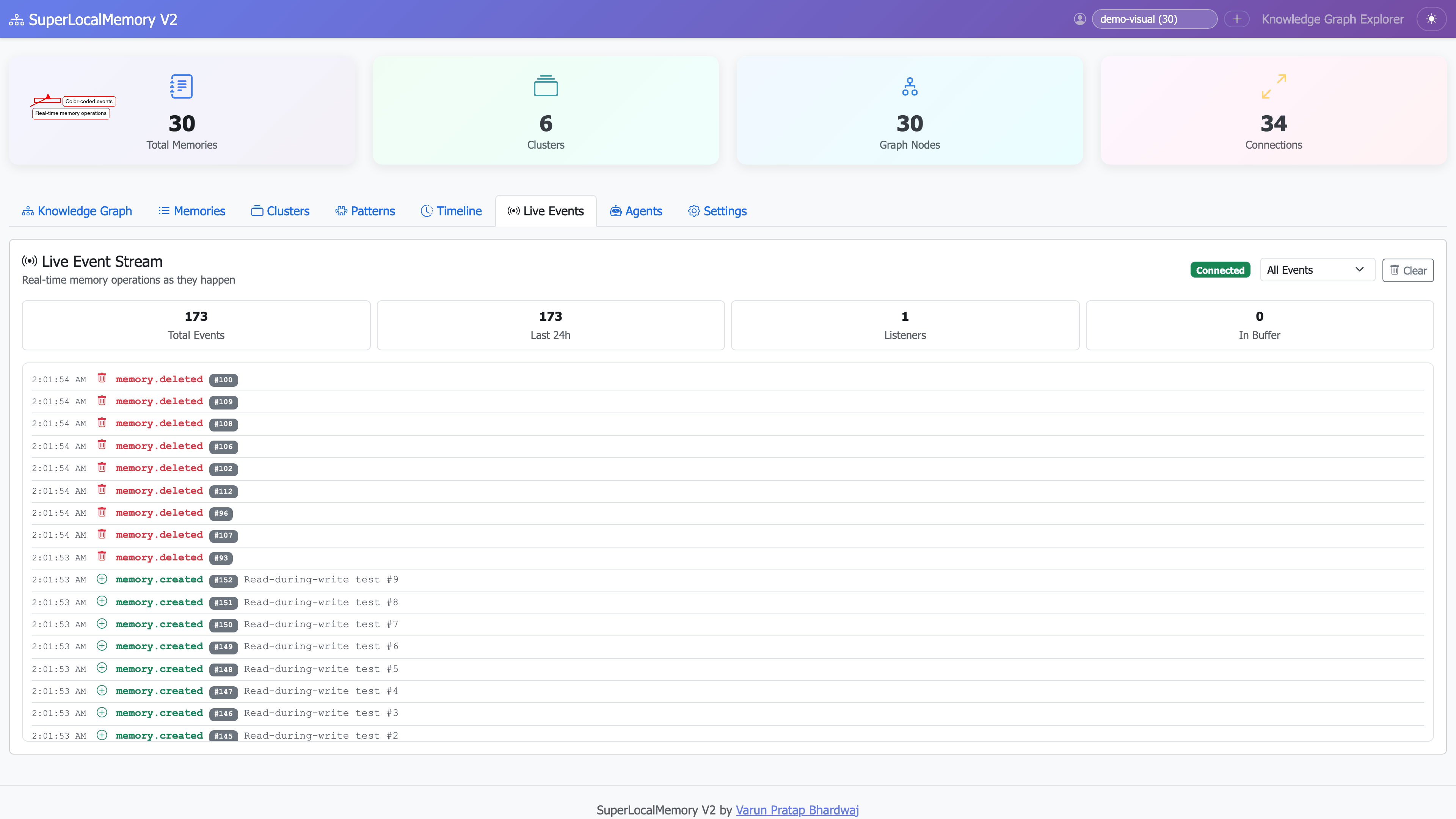
Real-time event stream showing memory operations and agent connections with source tool and timestamp
The Agents tab shows every AI tool currently connected to your memory system — or that has connected in the past.
For each agent, you'll see:
- Agent name and the protocol it uses to connect
- First connected and last active timestamps
- Total memories written and recalled
- Current connection status (active or disconnected)
What you can do:
- See at a glance which tools are active right now
- Review historical activity for any connected tool
- Identify unusual behavior — a tool writing far more memories than expected
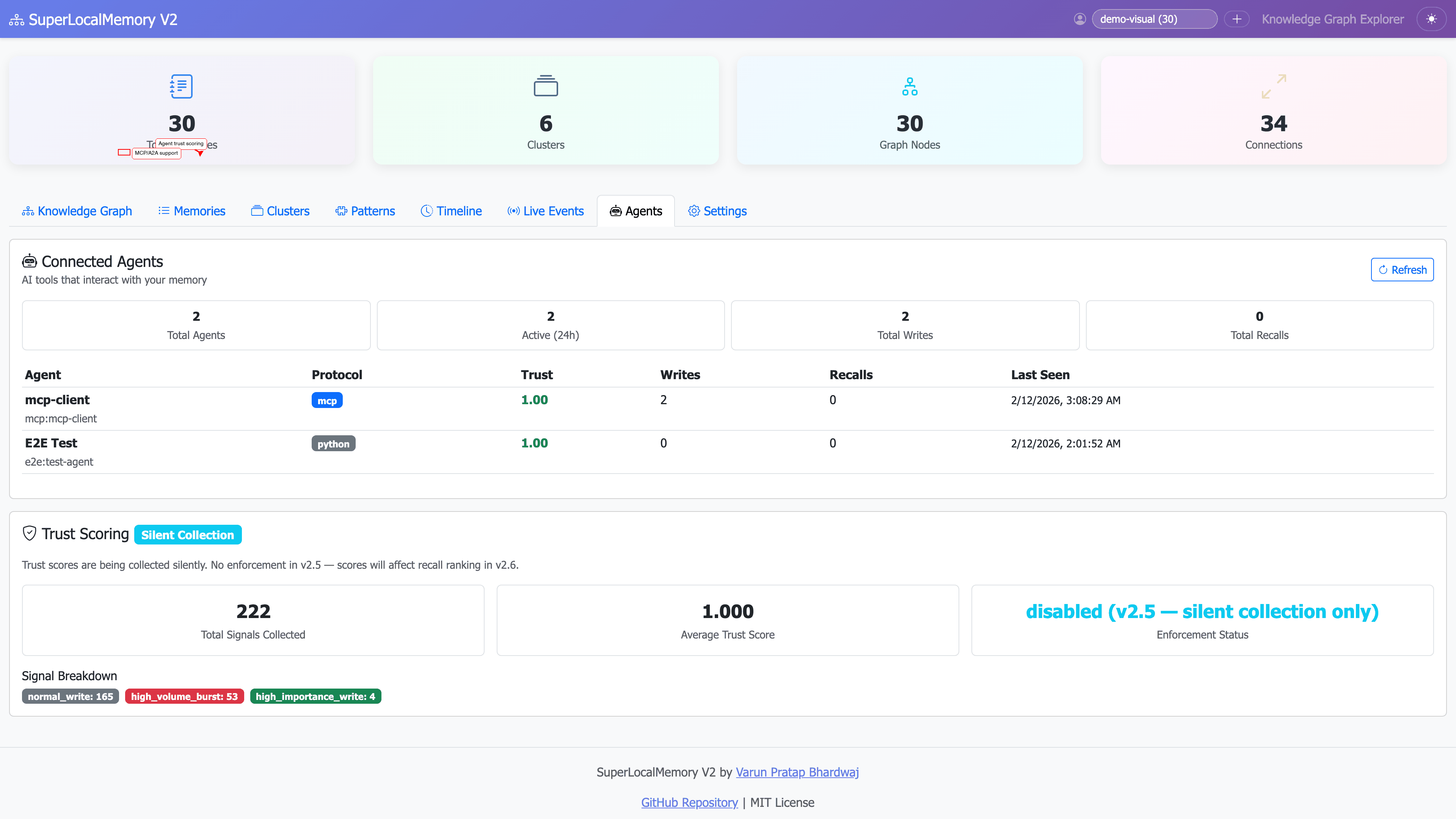
Agent registry showing all connected tools with activity counts and connection status
SuperLocalMemory keeps events for 30 days. Storage is managed automatically:
| Age | What's Kept |
|---|---|
| 0–48 hours | Every event |
| 2–14 days | Higher-importance events |
| 14–30 days | Daily summaries |
| 30+ days | Pruned automatically |
You always have a full record of the last two days and a meaningful history going back a month.
1. Multi-tool debugging
Something changed in your memory but you're not sure what. Open Live Events, filter by memory_updated or memory_deleted, and trace exactly which tool made the change and when.
2. Session kickoff At the start of a new coding session, check Live Events for the last few hours to see what your tools were doing — which memories were saved, which patterns were recalled.
3. Agent health check Not sure if Windsurf is properly connected? Check the Agents tab. If it's not listed as active, there may be a configuration issue.
4. Workflow automation
Connect to the SSE stream from a custom script. When a memory_stored event with a production tag fires, automatically notify your team channel.
- Visualization Dashboard — Full guide to all dashboard tabs
- MCP Integration — How AI tools connect to your memory system
- Universal Architecture — How all the layers fit together
- Agent Registry and Trust — How connected agents are tracked
Created by Varun Pratap Bhardwaj Solution Architect • SuperLocalMemory
GitHub • Report Issue • Wiki