Repository navigation
Decal looks different than expected #66027
Description

Godot version
4.0.beta1
System information
Windows 10, Vulkan (Forward Clustered), NVIDIA GeForce RTX 2060 (GeForce Game Ready Driver Version 516.94)
Issue description
When I loaded this specific image of an oval as the albedo texure of a decal, it renders with a black rectangle on the side that isn't part of the image, as seen in the second picture. This visual error is present both in the editor, and when running the project.
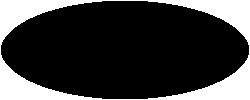

I haven't been able to find any other images where this happens.
Steps to reproduce
- Create a decal node, and a mesh for the decal to display on
- Set the albedo texture to that specific oval.
Activity
KittyMcTophat commentedon Sep 18, 2022
Update: I just found this circle that has the same problem

Also, if the image of the oval is rotated 90 degrees, it still has the same issue
KittyMcTophat commentedon Sep 18, 2022
Also, this thinner oval also causes the problem

KittyMcTophat commentedon Sep 18, 2022
Okay I found 5 more ovals that cause it
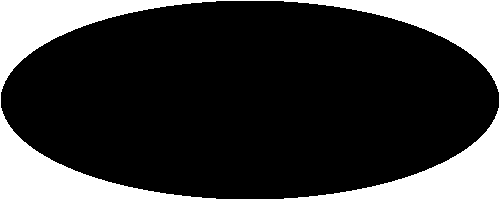
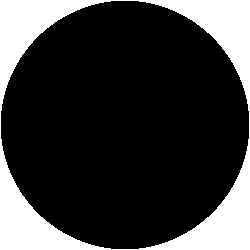
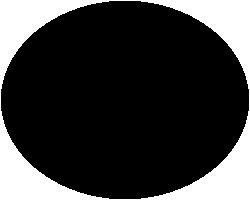
clayjohn commentedon Sep 18, 2022
Does the issue go away if you add padding to the edge of the texture? You'll probably need 8 pixels or so as it looks like mipmapping is causing pixels to bleed to where they aren't expected.
KittyMcTophat commentedon Sep 18, 2022
With 8 pixels of padding added, it renders as expected
clayjohn commentedon Sep 19, 2022
If you want mipmapping enabled you can use padding to avoid this type of issue. If you don't care about mipmapping you can turn it off in the project settings rendering/textures/decals/filter
KittyMcTophat commentedon Sep 19, 2022
It's still happening when I pick one of the non-mipmapping modes.
Calinou commentedon Sep 19, 2022
I'm not sure if this can be fixed. We may just have to document that you have to pad your decal textures with a few pixels to ensure correct appearance (at least 1 pixel if not using mipmaps, more if using mipmaps depending on texture resolution).
clayjohn commentedon Sep 6, 2023
Looking at this again. Since the decals are using an atlas texture created by Godot, Godot probably needs to add padding to the atlas. This shouldn't be a user responsibility.
Calinou commentedon Sep 28, 2025
See also discussion starting from #106294 (review), which mentions how the issue was resolved for directional light projectors (which require a different kind of padding).