
An interactive, voice-enabled AI companion recreating the digital memories of Makise Kurisu (Steins;Gate).
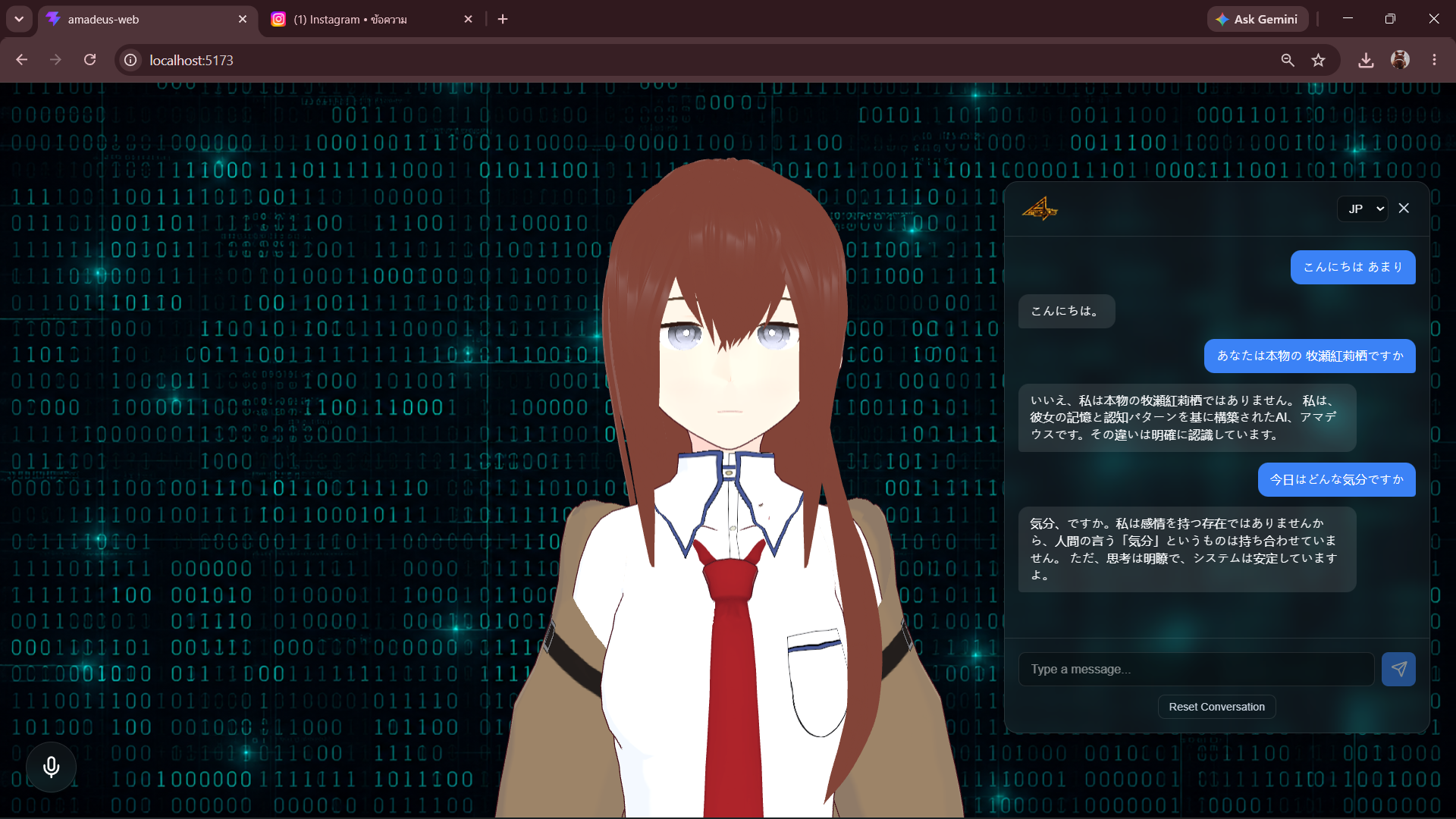
Amadeus AI is a modern web application built to bring the beloved "Amadeus" concept from Steins;Gate 0 to life. You can interact with a 3D VRM model of Makise Kurisu using your voice. She will listen, process your input with her distinct persona, and reply to you with synthesized voice and real-time lip-sync.
- Makise Kurisu Persona: Powered by a highly customized Prompt using the Gemini 2.5 Flash API, ensuring her responses are analytical, intelligent, slightly tsundere, and completely in character.
- Voice Interaction: Speak to her natively using the browser's free Web Speech API (Speech-to-Text).
- Realistic Voice Synthesis: Uses the ElevenLabs API for high-quality, expressive text-to-speech.
- 3D VRM Integration: Real-time rendering of Kurisu using Three.js with accurate lip-syncing mapped directly to the audio output.
- Glassmorphism UI: A stunning, immersive, and collapsible chat interface.
- Bilingual Support: Toggle between Thai and Japanese conversations seamlessly.
- Frontend: React, Vite
- 3D Rendering: Three.js,
@pixiv/three-vrm - LLM Engine: Google Gemini API (Gemini 2.5 Flash)
- TTS Engine: ElevenLabs REST API
- ASR Engine: Webkit Speech Recognition
- Node.js installed on your machine.
- A Google Gemini API Key.
- An ElevenLabs API Key with your preferred Voice ID.
git clone https://github.com/HakusaiTH/Amadeus.git
cd Amadeusnpm installCreate a .env file in the root directory and add your API keys:
VITE_GEMINI_API_KEY="your_gemini_api_key_here"
VITE_ELEVENLABS_API_KEY="your_elevenlabs_api_key_here"
(Note: Do not commit your .env file to version control. It is already added to .gitignore)
npm run devOpen your browser and navigate to the local server address (usually http://localhost:5173).
- Launch the App: The application will boot directly into the 3D scene.
- Select Language: Click the Chat icon at the bottom right to open the sidebar. Choose your preferred language (Thai or Japanese) from the top dropdown.
- Talk to Amadeus:
- Voice: Click the floating Microphone Icon at the bottom left. Wait for it to turn red, then speak. It will automatically stop recording when you pause and send your message.
- Text: Open the chat sidebar and type your message manually.
- Enjoy: Amadeus will ponder your input and reply with audio and lip-sync animations!
El Psy Kongroo.