Repository navigation
Keybindings
Every default key in TUIOS for window mode, terminal mode, prefix commands, copy mode and the mouse, grouped by the config section that owns it.
TUIOS has two modes. Window mode is for managing panes. Terminal mode sends your keys to the focused pane. A new session starts in window mode.
The leader key is Ctrl+B. Press it, release it, then press a command key. The leader works in both modes.
To send the leader key to the program in the pane, press it two times in terminal mode. The pane gets the leader that you configured, such as Ctrl+A.
Every table on this page names the config section that holds the binding and the action name to use in it. Every action is rebindable. See Customizing at the end.
Try it live: Learn tuios has you press these keys in the real app, in your browser. Free play has a cheat sheet you can click.
Note
Check your own bindings
This page lists the defaults. tuios keybinds list, tuios keybinds explain <key> and the keybind manager (Ctrl+B k) show what is bound on your machine.
Search every default binding, or read the tables by section below. Compare with my config takes your config.toml, shows your keys over the defaults, and names a table or action that TUIOS does not know. It stays in your browser:
Tip
This part is interactive on the docs site. Open it on tuios.dev.
Section: [keybindings.mode_control]. These keys work in window mode.
| Key | Action | Does |
|---|---|---|
| i, Enter | enter_terminal_mode |
Enter terminal mode |
| Esc | enter_window_mode |
Enter window mode |
| ? | toggle_help |
Toggle the help overlay |
| , |
open_settings (Added in v0.8.0)
|
Open the settings page |
| q | quit |
Quit. In a daemon session it opens the quit menu |
| none |
hold_window_mode (Added in v0.8.0)
|
Window mode while the key is held. Unbound by default |
To leave terminal mode, press Ctrl+B Esc, or the direct key from Terminal mode.
hold_window_mode needs a terminal that speaks the Kitty keyboard protocol (Ghostty, kitty, WezTerm, foot, Alacritty), because only that protocol reports key releases. Bind it to an ordinary spare key, such as an unused function key from f1 to f12. Binding a modifier such as leftalt also works, but then every keystroke in the session arrives as an escape code.
Section: [keybindings.window_management].
| Key | Action | Does |
|---|---|---|
| n | new_window |
New window |
| N |
new_session (Added in v0.8.0)
|
New session. Asks which machine when there is more than one |
| w, x | close_window |
Close the focused window |
| r | rename_window |
Rename the focused window |
| m | minimize_window |
Minimize the focused window |
| M | restore_all |
Restore all minimized windows |
| z | toggle_zoom |
Zoom the focused window, or unzoom it |
| p |
toggle_pip (Added in v0.8.3)
|
Pin the focused window as the picture-in-picture view, or unpin the pinned one |
| Tab | next_window |
Focus the next window |
| Shift+Tab | prev_window |
Focus the previous window |
| ; |
last_pane (Added in v0.9.0)
|
Go back to the pane that had focus before. Press it again to return |
| 1 to 9 |
select_window_1 to select_window_9
|
Focus a window by number |
| c |
copy_selection (Added in v0.8.0)
|
Copy the mouse selection |
| s |
focus_sidebar (Added in v0.8.0)
|
Give the keyboard to the session rail |
| S |
start_screensaver (Added in v0.8.0)
|
Start the screen saver now |
| Alt+Shift+N |
next_session (Added in v0.8.0)
|
Next session |
| Alt+Shift+P |
prev_session (Added in v0.8.0)
|
Previous session |
| none |
switch_session_1 to switch_session_9
|
Attach the session at that position in the rail. Unbound by default. A position with no session shows a message |
Section [keybindings.restore_minimized] restores one minimized window by position:
| Key | Action |
|---|---|
| Shift+1 to Shift+9 (also ! to () |
restore_minimized_1 to restore_minimized_9
|
Section [keybindings.system] has one binding: B is toggle_spotlight, which lights one part of the screen and dims the rest. See Spotlight.
Section: [keybindings.workspaces]. There are nine workspaces. The modifier is Option on macOS and Alt elsewhere.
| Key | Action | Does |
|---|---|---|
| Alt+1 to Alt+9 |
switch_workspace_1 to switch_workspace_9
|
Show a workspace |
| Alt+Shift+1 to Alt+Shift+9 |
move_and_follow_1 to move_and_follow_9
|
Move the focused window there and follow it |
rename_workspace opens the rename editor on the current workspace. It has no default key. Ctrl+B w r does the same from the prefix.
(Added in v0.9.3)
The next_workspace and prev_workspace actions go to the next or the previous workspace that has panes, and wrap at the end. They skip a workspace with no panes, so with workspaces.new_window_when_empty on they do not open a pane on each empty workspace. When no other workspace has panes, they do nothing. The actions have no default key. The command palette has the entries "Next workspace" and "Previous workspace". To bind them:
[keybindings.workspaces]
next_workspace = ["alt+y"]
prev_workspace = ["alt+u"]Section: [keybindings.layout].
| Key | Action | Does |
|---|---|---|
| t | toggle_tiling |
Turn tiling on or off |
| h | snap_left |
Snap to the left half. In tiling, focus left |
| l | snap_right |
Snap to the right half. In tiling, focus right |
| j |
focus_down (Added in v0.8.1)
|
Focus the window below |
| k |
focus_up (Added in v0.8.1)
|
Focus the window above |
| f | snap_fullscreen |
Fill the screen |
| u | unsnap |
Restore the size before the snap |
| H, Ctrl+← | swap_left |
Swap with the window to the left |
| L, Ctrl+→ | swap_right |
Swap with the window to the right |
| K, Ctrl+↑ | swap_up |
Swap with the window above |
| J, Ctrl+↓ | swap_down |
Swap with the window below |
| < | resize_master_shrink |
Narrow the master area |
| > | resize_master_grow |
Widen the master area |
| { | resize_height_shrink |
Shorten the focused window from the bottom edge |
| } | resize_height_grow |
Lengthen the focused window from the bottom edge |
| . | resize_master_grow_left |
Widen the master area from the left edge |
| [ | resize_height_shrink_top |
Shorten the focused window from the top edge |
| ] | resize_height_grow_top |
Lengthen the focused window from the top edge |
| none | resize_master_shrink_left |
Narrow the master area from the left edge. Unbound by default |
resize_master_shrink_left has no default because , opens settings. Bind it to a free key if you want it.
Corner snapping is on the layout prefix, not on the bare digits.
Four keys move focus to the window in a direction. Each direction has a key in window mode, in terminal mode and after the prefix.
| Direction | Window mode | Terminal mode | After Ctrl+B |
|---|---|---|---|
| Left | h | Alt+← | ← |
| Down | j | Alt+↓ | ↓ |
| Up | k | Alt+↑ | ↑ |
| Right | l | Alt+→ | → |
Focus goes to the nearest window in that direction that faces the focused window. At the edge of a tiled layout, focus stays where it is, unless appearance.focus_wrap (Added in v0.12.0) is on. Then focus goes to the window on the far side that faces the focused window. With tiling off, a window that does not face the focused window can also get focus.
With tiling off, h and l snap the focused window to the left or right half of the screen. j and k always move focus.
In the scrolling layout, left and right move between columns. Up and down move between the windows in one column.
The terminal mode keys and the prefix keys go on into the rail. When no window is in that direction and the rail is on that edge, the rail gets the keyboard. The key in the opposite direction gives the keyboard back. A hidden rail stays hidden.
If your config already binds j or k in a window mode section, TUIOS keeps your binding and gives focus_down or focus_up no key. tuios keybinds doctor tells you when this happens.
The optional tuios-nvim-navigator plugin lets the terminal-mode focus keys move through Neovim splits first. At the edge of a split, TUIOS moves to the next pane. The feature is off by default. Turn it on:
[appearance]
nvim_navigation = true
The plugin tells TUIOS when it is active, so the same keys keep their normal TUIOS action in shells and other programs. By default, both projects use Alt+←, Alt+↓, Alt+↑ and Alt+→. If you change the keys on one side, change the other to match terminal_focus_left, terminal_focus_down, terminal_focus_up and terminal_focus_right.
The plugin sends private OSC 7777 messages. TUIOS reads them and never shows them in the pane:
OSC 7777 ; tuios-nvim-navigator ; state ; active BEL
OSC 7777 ; tuios-nvim-navigator ; state ; inactive BEL
OSC 7777 ; tuios-nvim-navigator ; focus ; <direction> BEL
<direction> is left, down, up or right. Another Neovim integration can send the same messages. TUIOS accepts a focus request only from the focused pane in terminal mode, and only just after it sent the matching focus key to that pane. Window mode always keeps the focus keys for TUIOS.
See also: the Neovim page.
Also in [keybindings.layout]. See BSP Tiling.
| Key | Action | Does |
|---|---|---|
| - | split_horizontal |
Split the focused pane top and bottom |
| |, \ | split_vertical |
Split the focused pane left and right |
| R | rotate_split |
Flip the split direction |
| = | equalize_splits |
Make every split equal. In master-stack, also put the master back at master_ratio
|
| Alt+h / j / k / l |
preselect_left, preselect_down, preselect_up, preselect_right
|
Choose where the next window opens |
The preselect keys use Option on macOS. The prefix menu has its own copies of the four split actions, and rebinding one set does not change the other.
Section: [keybindings.terminal_mode]. These keys work in terminal mode with no prefix. Everything else goes to the pane.
Linux, others
| Key | Action | Does |
|---|---|---|
| Alt+n | terminal_next_window |
Focus the next window |
| Alt+p | terminal_prev_window |
Focus the previous window |
| Alt+Esc | terminal_exit_mode |
Go to window mode |
| Alt+arrows |
terminal_focus_left, _right, _up, _down
|
Focus the pane in that direction |
| Shift+↑ |
terminal_scroll_up (Added in v0.8.0)
|
Scroll into the pane's scrollback |
| Shift+↓ |
terminal_scroll_down (Added in v0.8.0)
|
Scroll back toward live output |
| Shift+PgUp |
terminal_scroll_page_up (Added in v0.10.0)
|
Scroll one page into the pane's scrollback |
| Shift+PgDn |
terminal_scroll_page_down (Added in v0.10.0)
|
Scroll one page back toward live output |
| Ctrl+Shift+V, Super+V, Shift+Super+V, middle click |
terminal_paste_host (Added in v0.8.0)
|
Paste from the host clipboard. An image is pasted as a file path. See Paste an image |
| Alt+; |
pick_path (Added in v0.12.0)
|
Open the path picker. See Pick a path |
macOS
| Key | Action | Does |
|---|---|---|
| Option+Tab, Alt+n | terminal_next_window |
Focus the next window |
| Option+Shift+Tab, Alt+p | terminal_prev_window |
Focus the previous window |
| Option+Esc | terminal_exit_mode |
Go to window mode |
| Alt+arrows |
terminal_focus_left, _right, _up, _down
|
Focus the pane in that direction |
| Shift+↑ |
terminal_scroll_up (Added in v0.8.0)
|
Scroll into the pane's scrollback |
| Shift+↓ |
terminal_scroll_down (Added in v0.8.0)
|
Scroll back toward live output |
| Shift+PgUp |
terminal_scroll_page_up (Added in v0.10.0)
|
Scroll one page into the pane's scrollback |
| Shift+PgDn |
terminal_scroll_page_down (Added in v0.10.0)
|
Scroll one page back toward live output |
| Ctrl+Shift+V, Super+V, Shift+Super+V, middle click |
terminal_paste_host (Added in v0.8.0)
|
Paste from the host clipboard. An image is pasted as a file path. See Paste an image |
| Option+; |
pick_path (Added in v0.12.0)
|
Open the path picker. See Pick a path |
Warning
Alt+Left and Alt+Right cost you word motions
Readline, fish and zsh use Alt+← and Alt+→ to move a word at a time. To give them back, run tuios keybinds free alt+left and tuios keybinds free alt+right. Ctrl+B then an arrow still moves focus.
Plain Ctrl+V is not bound. It reaches the pane, so vim's visual block mode works.
Shift+↑ and Shift+↓ scroll the pane into its history only when the program is on the main screen and did not turn on a mouse mode. In other panes, TUIOS sends the keys to the program, so nvim, less and htop get them. In copy mode the keys scroll. This is the same rule as for the mouse wheel, and the same rule as in kitty. Shift+PgUp and Shift+PgDn follow the same rule, and scroll one page of the pane at a time.
(Added in v0.10.0)
In terminal mode, a middle click pastes from the clipboard. It does not paste the primary selection. A program that uses the mouse, such as vim with mouse=a, lazygit or tmux, gets a plain middle press. In [keybindings.terminal_mode], middle names the middle button. It takes ctrl, alt and shift, such as ctrl+middle. A binding with a modifier works over a program that uses the mouse too. Other tables do not accept middle.
[keybindings.terminal_mode]
# Paste only on ctrl+middle, and give the plain middle click to every program
terminal_paste_host = ["ctrl+shift+v", "super+v", "shift+super+v", "ctrl+middle"]Ctrl+B V pastes the image on your clipboard into the focused pane. TUIOS saves the image to a file on the machine where the pane runs. Then it pastes the path of that file into the pane. The pane can run on this machine or on a host. Claude Code, Codex and other agents read an image from a path in the prompt. The action is paste_image, and the command palette has it too.
The paste key also pastes an image. When the clipboard holds an image and no text, the paste key pastes the image. When the clipboard holds text, the paste key pastes the text. Some terminals send an empty paste when the clipboard holds only an image. TUIOS then pastes the image.
A browser can put a link or text beside a copied image. The paste key then pastes the text. Ctrl+B V always pastes the image.
The paste key waits at most 0.3 seconds for the list of clipboard types. When the clipboard tool is slower, or cannot list the clipboard, the paste key pastes text. It then does not ask the tool again until TUIOS restarts.
Ctrl+V alone goes to the program in the pane. Claude Code reads the clipboard on Ctrl+V itself, and that only works in a pane on this machine. For a pane on a host, use Ctrl+B V.
TUIOS reads the image with the clipboard tool of your system:
| System | Tool |
|---|---|
| Linux, Wayland |
wl-paste from wl-clipboard |
| Linux, X11 |
xclip. xsel cannot read an image |
| macOS |
osascript, or pngpaste when it is installed |
| Windows | PowerShell |
The file is a PNG, JPEG, GIF, WebP, BMP or TIFF image of 8 MB or less. Only you can read it. TUIOS deletes it after one hour, or when the daemon stops. The paste folder next to the TUIOS socket keeps at most 50 images and 100 MB. When it is full, TUIOS deletes the oldest image.
(Added in v0.9.3)
TUIOS writes the image on the machine where the pane program runs. A pane can run on another machine in three ways:
- A session on a host, attached with
tuios attach --host NAME. The daemon on the host writes the file. - A window on a host in a session of this machine. The daemon on the host writes the file.
- A pane of this machine that runs
sshormoshto a machine in your[hosts]table, such asssh buildorssh -t build tmux. TUIOS reads the ssh command line from the process. It resolves that line and each[hosts]entry withssh -G. It compares the host name, the user, the port and the jump hosts. When exactly one entry is the same, TUIOS copies the image to the drop folder of that host and pastes the path there.
The other machine must allow files from this machine. If it does not, TUIOS pastes nothing and shows the line to add to the config on that machine.
TUIOS pastes nothing in an ssh pane in these cases. A message says why:
- No
[hosts]entry is the machine of the ssh command. Add the machine withtuios hosts add NAME ADDR. - More than one
[hosts]entry is that machine. Keep one of them. - TUIOS cannot read the ssh command line, for example because it has
-For-o ProxyCommand. - The shell over there reports a folder on another
[hosts]machine. The pane runs ssh inside ssh. Paste the image in a pane on that machine.
An ssh tunnel (ssh -N, or -f, -n or -W without -t) does not read what you type. TUIOS saves the image on this machine for it. So it does for a pane that only reports a folder on another machine and runs no ssh.
TUIOS does not read the clipboard when the client runs in a browser, when it runs on another machine through tuios ssh, or when the paste comes from send-keys. Inside ssh, TUIOS reads only an X display that ssh -X forwards. Any other clipboard there is the other machine's.
Keys sent to the pane are encoded the way a real terminal encodes them. When the program in the pane turns on application cursor keys (DECCKM), as zsh's line editor does, the arrows, Home and End are sent in their SS3 form (ESC O H for Home) instead of the CSI form (ESC [ H), so the program's bindings for them work. tuios send-keys follows the same rule.
tuios send-keys also encodes a named key or a chord in the keyboard mode the program asked for. A program that asked for the kitty keyboard protocol or modifyOtherKeys gets that encoding, the same as for a key you press. Vim then reads Ctrl+H as Ctrl+H, not as Backspace.
(Added in v0.9.3)
Ctrl+B u opens the Copies panel. It shows one row for each copy between machines, newest first. The dock item transfers opens it with a click. The command palette row is "Copies between machines". Nothing shows in the dock or on the rail while no copy exists.
A running copy also shows a percent mark on the rail row of its machine.
| Key | Action | What it does |
|---|---|---|
| j k ↓ ↑ |
transfers_down, transfers_up
|
Move the cursor |
| p | transfers_pause |
Pause the copy, or go on with it |
| x | transfers_cancel |
Cancel the copy. TUIOS asks first |
| r | transfers_retry |
Try a failed copy again from where it stopped |
| c | transfers_clear |
Remove the copies that ended |
| Enter | transfers_answer |
Answer a copy that waits for an answer |
| Esc q | transfers_close |
Close the panel |
The keys are in [keybindings.transfers]. The panel key is prefix_transfers in [keybindings.prefix_mode]. A notice shows when a copy ends.
A copy waits for an answer when a file is there on the other machine and the copy was started with conflict = "ask". The dock says 1 copy asks. Press Enter on the row to choose Replace, Keep both or Skip. Press Space to use the answer for the other files of the copy. TUIOS does not open this question by itself, because tuios cp in a pane asks the same question there.
- In the files list of the rail, the menu of a file has Send to machine. It copies the file to the receive folder of the machine you pick.
- When you drop files on a pane whose program runs on another machine, the terminal pastes their paths. TUIOS asks whether to send the files to that machine. Send copies them to a private drop folder there. When the copy is checked, TUIOS pastes the path on that machine. Paste the text pastes the paths as they are. A paste into a pane on this machine does not change.
See tuios cp and Copy files between machines.
(Added in v0.11.0)
Lock mode gives every key to the program in the pane. It is the locked mode of zellij. Turn it on in config.toml:
[keybindings]
lock = true
The zellij preset turns it on, with Ctrl+G as the leader. Set lock = false to turn it off under that preset.
- In terminal mode, TUIOS takes only the leader. Every other key goes to the pane, also the keys that TUIOS binds. Alt+1 to Alt+9, Alt+n, Alt+Esc, Ctrl+P, the arrow keys with Alt, Shift+↑ and the hold key all go to the pane.
- The leader unlocks. Press the leader, then the keys of one action. The action runs and TUIOS locks again.
- A repeatable action keeps its menu open. These are the actions in
keybindings.repeat, such as focus moves and resize steps. Press the key again to move again. You do not press the leader again. - The open menu then takes only repeatable keys. Any other key closes the menu, goes to the pane, and TUIOS locks again. For example, x after Ctrl+B ← → goes to the pane. It does not close a pane. The which-key panel of the open menu shows only the repeatable keys and Esc.
- Press Esc to close the menu and lock again. Ctrl+C also closes it.
- Press the leader to close the menu and open a new leader menu.
- To go to window mode, press the leader, then Esc.
- To send the leader to the pane, press the leader two times.
- Window mode, overlays, copy mode and the mouse do not change.
The mode pill in the dock shows a lock while TUIOS is locked. It shows an open lock while the leader or a menu waits for a key. Without Nerd Fonts, the pill shows LOCK and UNLOCK. When the dock is hidden, or appearance.dock_prefix_indicator is "badge", the floating badge shows PREFIX and the open lock while a menu waits for a key.
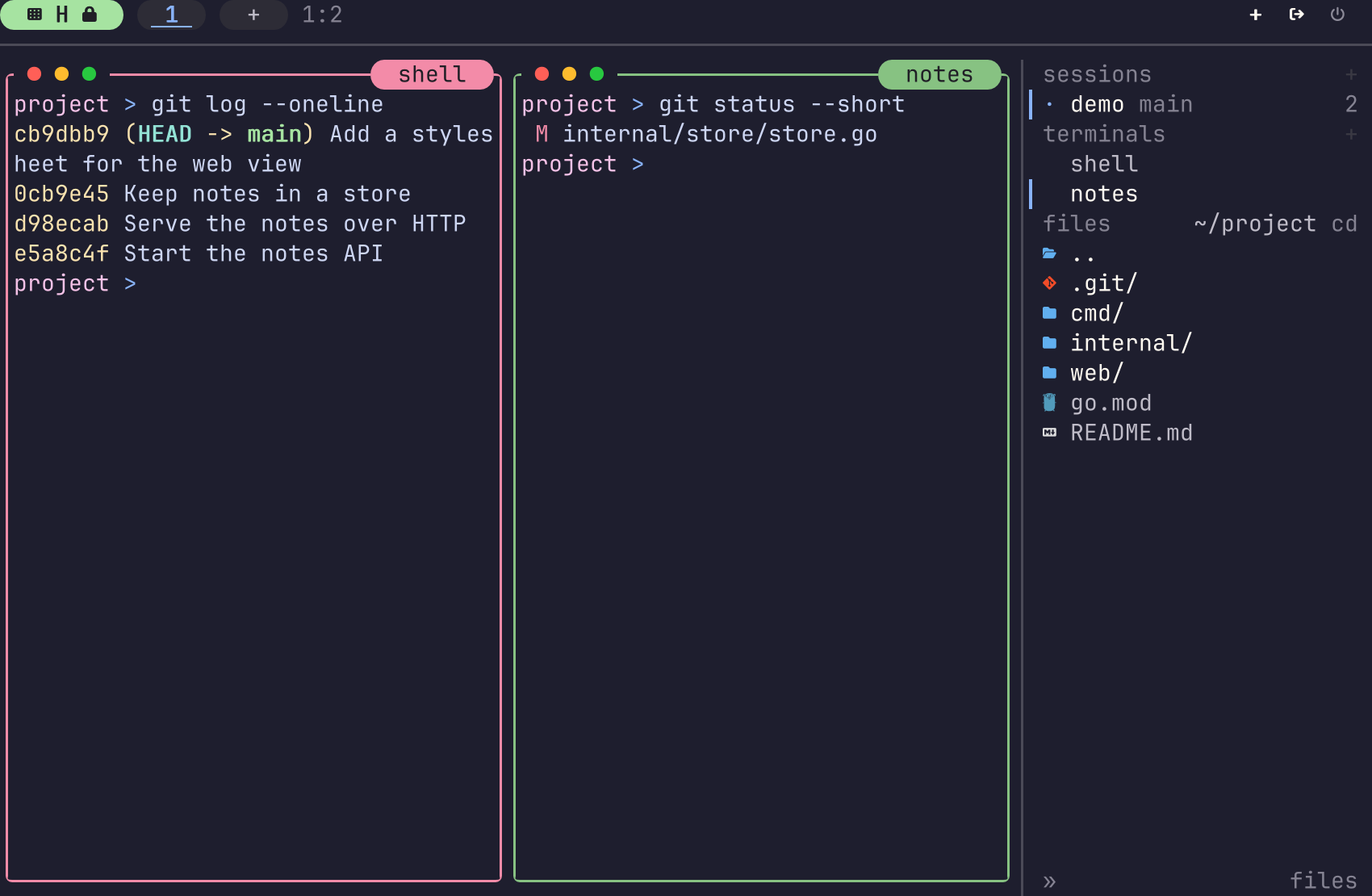
Locked: every key but the leader goes to the pane.
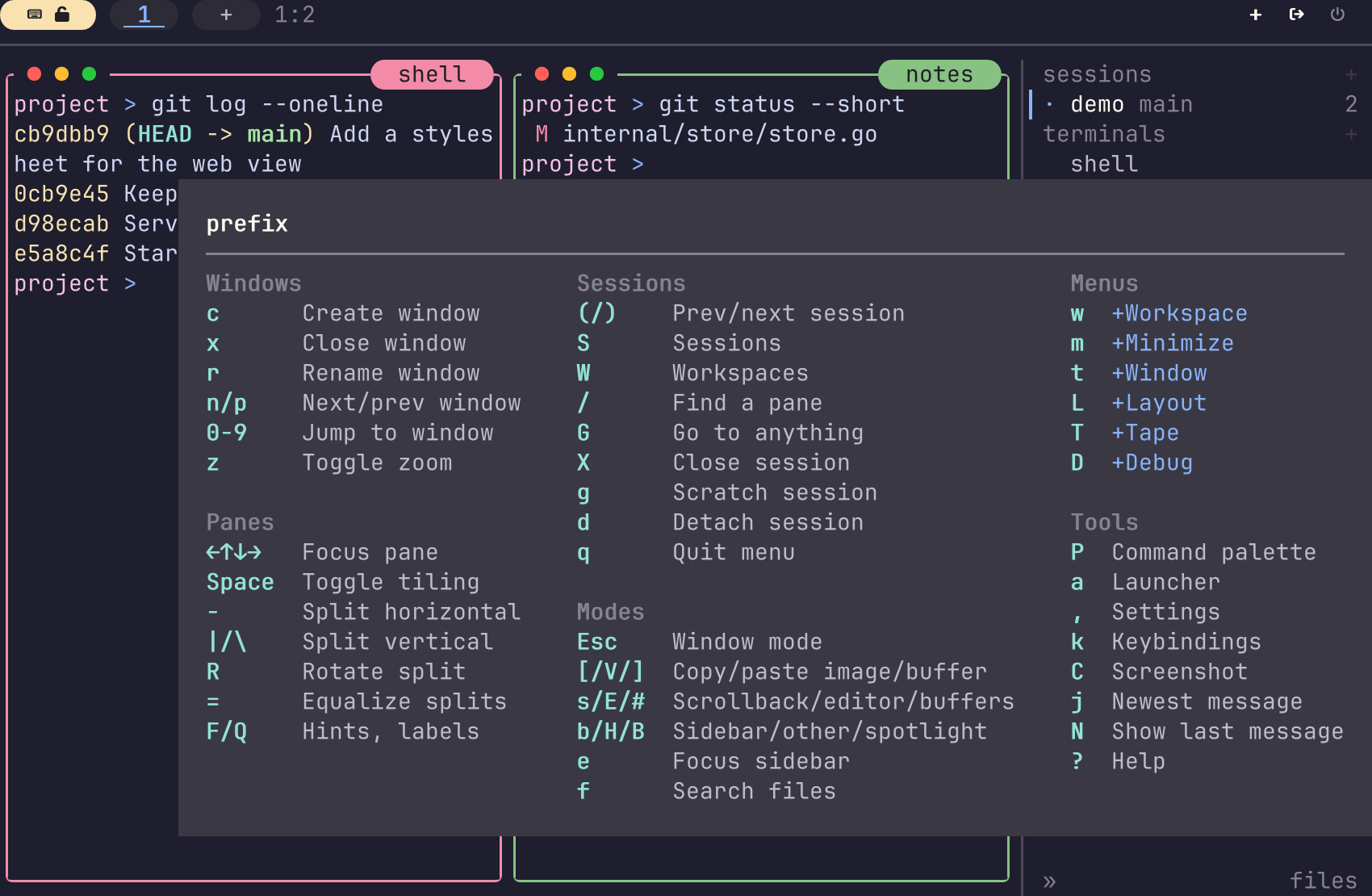
After the leader: the lock is open for one action.
(Added in v0.12.0)
Nest mode gives every key to the program in the pane, the leader too, until you press one key to end it. Use it for a tmux, or a tuios on another machine, that uses the same leader. The nest action turns it on. Its default key is Ctrl+B Enter, in every preset.
[keybindings.terminal_mode]
nest = ["alt+shift+enter"]- In terminal mode, every key goes to the focused pane: the leader, the keys tuios binds and the hold key.
-
F12 ends nest mode and does not go to the pane.
keybindings.nest_exit_key(Added in v0.12.0) sets another key. A key tuios cannot read goes back to F12, and the log viewer reports a key that programs type, such as a letter. - Overlays that you open with the mouse, copy mode and the mouse do not change.
- While the rail has the keyboard, the rail takes the keys. Press Esc to give them back to the pane.
- Nest mode belongs to the client. It ends when the client leaves terminal mode, and on detach.
The mode pill in the dock shows NEST F12, and the focused pane's border takes the same colour.
Section: [keybindings.global]. These keys work in window mode and terminal mode.
| Key | Action | Does |
|---|---|---|
| Ctrl+P |
command_palette (Added in v0.8.0)
|
Open the command palette |
| Alt+Space |
launcher (Added in v0.8.0)
|
Open the app launcher |
The command palette searches commands, sessions and windows. Start the query with @ to filter panes by agent state (@n for needs input), or with # to search actions to rebind. Each row shows the key you bound to its action, such as prefix+a, and no key when the action has none. A change to the config shows the next time you open the palette.
The app launcher lists every executable on $PATH, ranked by use. Enter runs the selection in a new pane with no shell in between. Tab types the command into the focused shell instead, so you can add arguments.
These two keys take Ctrl+P from fish and vim and Alt+Space from readline. Set an action to [] to give its key back. On macOS, Option+Space types a non-breaking space, so use Ctrl+B a for the launcher.
Press Ctrl+B, then the key. Section: [keybindings.prefix_mode].
| Key | Action | Does |
|---|---|---|
| c | new_window |
New window |
| x | close_window |
Close the focused window |
| r | prefix_rename_window |
Rename the focused window |
| n, Tab | prefix_next_window |
Next window |
| p, Shift+Tab | prefix_prev_window |
Previous window |
| 0 to 9 |
prefix_select_0 to prefix_select_9
|
Jump to a window |
| arrows |
terminal_focus_left, _right, _up, _down
|
Focus the pane in that direction |
| ) |
next_session (Added in v0.8.0)
|
Next session |
| ( |
prev_session (Added in v0.8.0)
|
Previous session |
| Space | prefix_toggle_tiling |
Turn tiling on or off |
| z | prefix_fullscreen |
Zoom the focused window |
| - | split_horizontal |
Split top and bottom |
| |, \ | split_vertical |
Split left and right |
| R | rotate_split |
Flip the split direction |
| = | equalize_splits |
Make every split equal. In master-stack, also put the master back at master_ratio
|
| [ | prefix_selection |
Enter copy mode |
| F |
hints (Added in v0.8.1)
|
Label the text on the pane to copy it. See Hints |
| none |
hints_all_panes (Added in v0.8.2)
|
Label the text on every pane of the workspace. See All panes |
| Q |
display_panes (Added in v0.9.0)
|
Put a label on each pane and focus one by its label. See Pane labels |
| / |
choose_tree (Added in v0.9.0)
|
Find a pane in every session and go to it. See The pane navigator |
| s | prefix_scrollback |
Open the scrollback browser |
| C |
prefix_screenshot (Added in v0.8.0)
|
Take a screenshot |
| P |
command_palette (Added in v0.8.0)
|
Open the command palette |
| a |
launcher (Added in v0.8.0)
|
Open the app launcher |
| , |
open_settings (Added in v0.8.0)
|
Open the settings page |
| k |
prefix_keybinds (Added in v0.8.0)
|
Open the keybind manager |
| b |
prefix_toggle_sidebar (Added in v0.8.0)
|
Show or hide the session rail |
| H |
prefix_toggle_other_rail (Added in v0.9.3)
|
Show or hide the second rail, on the other edge. See Both edges |
| B |
toggle_spotlight (Added in v0.8.0)
|
Turn the spotlight on or off |
| ] |
paste_buffer (Added in v0.9.0)
|
Paste the newest paste buffer into the focused pane |
| # |
choose_buffer (Added in v0.9.0)
|
Show the paste buffers to choose one |
| V |
paste_image (Added in v0.8.3)
|
Paste the clipboard image as a file path. See Paste an image |
| g |
toggle_scratch (Added in v0.8.2)
|
Show or hide the scratch terminal |
| U |
new_worktree (Added in v0.11.1)
|
Make a worktree of the focused pane's repository, and a session in it. See New worktree |
| Enter |
nest (Added in v0.12.0)
|
Send every key to the pane until F12. See Nest mode |
| . |
pick_path (Added in v0.12.0)
|
Open the path picker. See Pick a path |
| I |
set_note (Added in v0.12.0)
|
Write the session's note. See Session note |
| Z |
toggle_calm (Added in v0.12.0)
|
Turn calm mode on or off. See Calm mode |
| J / K |
next_agent, prev_agent (Added in v0.12.0)
|
Go to the next or previous agent pane. See Next and previous agent |
| e |
prefix_explore (Added in v0.8.0)
|
Move the keyboard to the rail, or back |
| S |
prefix_session_switcher (Added in v0.8.0)
|
Go to a session: go-to with # typed |
| W |
prefix_workspace_switcher (Added in v0.8.0)
|
Go to a workspace of this session: go-to with ! session:NAME typed |
| G |
goto_picker (Added in v0.11.0)
|
Go to an agent, session, workspace or pane |
| j |
prefix_jump_notif (Added in v0.8.0)
|
Jump to the pane of the newest message |
| N |
prefix_last_message (Added in v0.9.0)
|
Show the last message in full. See Messages |
| u |
prefix_transfers (Added in v0.9.3)
|
Open the Copies panel |
| i |
prefix_inbox (Added in v0.8.0)
|
Open the Inbox |
| o |
prefix_next_attention (Added in v0.8.0)
|
Go to the oldest Inbox item that needs you. o again goes to the next |
| O |
prefix_next_finished (Added in v0.8.0)
|
Go to the newest finished turn nobody has seen. O again goes to the next older one |
| v |
prefix_review (Added in v0.8.0)
|
Review the focused pane's changes |
| A |
prefix_agents_settings (Added in v0.9.0)
|
Open the Agents tab of the settings page |
| M |
prefix_mail (Added in v0.8.0)
|
Open the Inbox on its mail. m there opens the whole mailbox |
| t | prefix_window |
Window prefix |
| m | prefix_minimize |
Minimize prefix |
| w | prefix_workspace |
Workspace prefix |
| L |
prefix_layout (Added in v0.8.0)
|
Layout prefix |
| T | prefix_tape |
Tape prefix |
| D | prefix_debug |
Debug prefix |
| d | prefix_detach |
Detach. The session keeps running |
| X |
prefix_close_session (Added in v0.8.0)
|
Close the session and its panes |
| Esc |
prefix_exit_mode (Added in v0.8.0)
|
Leave terminal mode. Never detaches |
| q | prefix_quit |
Quit. In a daemon session it opens the quit menu: detach, switch session, or kill the session |
| ? | toggle_help |
Toggle help |
In terminal mode, pressing the leader twice sends one literal Ctrl+B to the pane.
The which-key popup that opens after the leader shows the keys of your config. A key that you rebind shows in its new place. An action that you unbind has no row. A row for a range of keys, such as 1-9, shows only the keys that are bound. For example, if you unbind the key for workspace 5, the row shows 1-4/6-9. Set appearance.whichkey_enabled = false to turn the popup off.
After a command worth repeating, such as an arrow, o or O, the prefix stays armed for 500 ms. Ctrl+B then ← ← ← moves three panes. Change this with appearance.prefix_repeat_time. 0 turns it off.
Ctrl+B g shows the scratch terminal, a small layout of panes in a box over the current layout. Press it again, also from inside the box, to hide it. The shells keep running between shows. Inside the box the window keys act on its panes: split, move the focus, resize, swap, zoom and close. [scratch] sets the size of the box. See Scratch terminal.
(Added in v0.11.1)
Ctrl+B U makes a worktree of the repository of the focused pane's folder.
- A small dialog asks for the branch name.
- Optionally, press Tab and type a session name. With no name, TUIOS uses the name the dialog shows.
- Press Enter. TUIOS makes a new branch in a new worktree, and a session in it. The rail groups the session under its repository, and TUIOS switches to it.
Esc closes the dialog. If the focused pane is not in a git repository, a message says so. This is what tuios worktree new does. The command palette has the action too. See Worktrees.
(Added in v0.12.0)
Ctrl+B I opens a one-line editor with the note of the session. A note says what the session is for or what comes next. Enter saves the note. An empty note removes it. Esc closes the editor. The command palette and the menu of a session row in the rail have it too. See Return notes.
(Added in v0.12.0)
Alt+; in terminal mode (Option+; on macOS), or Ctrl+B ., opens the path picker at the cursor of the focused pane. The picker lists the folder that the shell in the pane is in. Folders come first, then files. Type to filter the names, and press Enter to type the path of the selected name at the cursor.
| Key | Does |
|---|---|
| Text | Filter the names |
| ↑ ↓, Ctrl+P Ctrl+N | Move the selection |
| Tab | Open the selected folder. On a file, complete the name |
| Shift+Tab, Backspace with no filter text | Go up one folder |
| / at the start | Start an absolute path |
~/ at the start |
Start a path in the home folder |
| Enter | Type the path and close the picker |
| Alt+H | Show or hide the hidden files |
| Esc | Close the picker and type nothing |
The path is relative to the folder of the pane. A path that starts with / or ~/ stays absolute. tuios quotes the path for the shell in the pane. A click on a name types its path, and the wheel moves the selection.
The picker works in a pane on another machine: the daemon there lists the folder, with the same read rules as the files section. When the shell in the pane runs ssh to another machine, the picker does not open. path_picker.show_hidden (Added in v0.12.0) shows the hidden files when the picker opens.
(Added in v0.12.0)
Ctrl+B Z turns calm mode on and off. While calm mode is on:
- Nothing moves. Window slides, panel fades, the shimmer of a working agent and the copy sweep stop. Your
appearance.motionlevel does not change. - Nothing blinks. The cursor is steady.
- Messages from panes, agents and mail do not show in the dock. The log keeps them. An agent that needs you still shows its message, and so do warnings and errors.
- The dock tabs do not mark output on other workspaces. The bell mark stays.
The dock shows calm while it is on. calm 3 means that 3 messages are in the log. When you turn calm mode off, tuios tells you how many messages came in. To keep calm mode on after a restart, set appearance.calm = true. See Calm mode.
Ctrl+B t, then the key. Section: [keybindings.window_prefix].
| Key | Action | Does |
|---|---|---|
| n | new_window |
New window |
| x | close_window |
Close the focused window |
| r | window_prefix_rename |
Rename the focused window |
| Tab | prefix_next_window |
Next window |
| Shift+Tab | prefix_prev_window |
Previous window |
| t | toggle_tiling |
Turn tiling on or off |
| f |
window_prefix_float (Added in v0.11.0)
|
Float the pane or tile it. A TML popup becomes a pane, and a TML pane a popup |
| Esc |
prefix_cancel (Unreleased)
|
Cancel |
Ctrl+B m, then the key. Section: [keybindings.minimize_prefix].
| Key | Action | Does |
|---|---|---|
| m | minimize_prefix_focused |
Minimize the focused window |
| 1 to 9 |
minimize_prefix_restore_1 to minimize_prefix_restore_9
|
Restore a minimized window by position |
| M | restore_all |
Restore all minimized windows |
| f |
minimize_prefix_focus_only (Unreleased)
|
Focus only: minimize every other pane on the workspace and keep the focused one. Press it again to restore the panes it minimized, and only those. Scratch panes and popups are left alone |
| Esc |
prefix_cancel (Unreleased)
|
Cancel |
Ctrl+B w, then the key. Section: [keybindings.workspace_prefix].
| Key | Action | Does |
|---|---|---|
| 1 to 9 |
workspace_prefix_switch_1 to workspace_prefix_switch_9
|
Show a workspace |
| ! @ # $ % ^ & * ( |
workspace_prefix_move_1 to workspace_prefix_move_9
|
Move the focused window there and follow it |
| r |
workspace_prefix_rename (Added in v0.8.0)
|
Rename the current workspace |
| Esc |
prefix_cancel (Unreleased)
|
Cancel |
Ctrl+B L, then the key. Section: [keybindings.layout_prefix].
| Key | Action | Does |
|---|---|---|
| l |
layout_prefix_load (Added in v0.8.0)
|
Open the layout picker |
| s |
layout_prefix_save (Added in v0.8.0)
|
Save the current layout as a template |
| 1 to 4 |
snap_corner_1 to snap_corner_4
|
Snap to the top-left, top-right, bottom-left or bottom-right quarter. Floating mode only |
| 5 to 9 |
resize_width_50 to resize_width_90
|
Set the focused window's width to 50% to 90% |
| Shift+5 to Shift+9 |
resize_height_50 to resize_height_90
|
Set its height to 50% to 90% |
| Esc |
prefix_cancel (Unreleased)
|
Cancel |
Actions resize_width_10 to resize_width_40 and resize_height_10 to resize_height_40 also exist, with no default key.
Loading a layout moves the existing windows into place. It does not close any. Extra windows are minimized. tuios layout manages saved templates from the shell.
Ctrl+B T, then the key. Section: [keybindings.tape_prefix]. See Tape Recording.
| Key | Action | Does |
|---|---|---|
| m | toggle_tape_manager |
Open the tape manager |
| r | tape_prefix_record |
Start recording |
| s | tape_prefix_stop |
Stop recording |
| t |
tape_prefix_review (Added in v0.8.0)
|
Review the project tape found in this directory |
| Esc |
prefix_cancel (Unreleased)
|
Cancel |
While a tape plays, section [keybindings.script] is active: Ctrl+P is script_pause and pauses or resumes playback.
Ctrl+B D, then the key. Section: [keybindings.debug_prefix].
| Key | Action | Does |
|---|---|---|
| l | debug_prefix_logs |
Toggle the log viewer |
| c | debug_prefix_cache |
Toggle style cache statistics |
| k |
debug_prefix_showkeys (Added in v0.8.0)
|
Toggle the showkeys overlay |
| a | debug_prefix_animations |
Toggle animations |
| Esc |
prefix_cancel (Unreleased)
|
Cancel |
Section: [keybindings.sidebar]. Active while the rail has the keyboard: press s in window mode, or Ctrl+B e.
| Key | Action | Does |
|---|---|---|
| j, ↓ |
cursor_down (Added in v0.8.0)
|
Move down |
| k, ↑ |
cursor_up (Added in v0.8.0)
|
Move up |
| g, Home |
first (Added in v0.8.0)
|
First row |
| G, End |
last (Added in v0.8.0)
|
Last row |
| l, → |
expand (Added in v0.8.0)
|
Go to the next section |
| h, ← |
collapse (Added in v0.8.0)
|
Go to the previous section |
| Enter |
activate (Added in v0.8.0)
|
Open the row |
| J, Shift+↓ |
reorder_down (Added in v0.8.0)
|
Move the session or machine down |
| K, Shift+↑ |
reorder_up (Added in v0.8.0)
|
Move the session or machine up |
| Tab, Shift+Tab |
section (Added in v0.8.0)
|
Cycle the sessions, terminals and agents sections |
| 1 to 9 |
jump_1 to jump_9
|
Jump to a row by number |
| n |
new_session (Added in v0.8.0)
|
New session |
| t | new_window |
New window |
| r |
rename (Added in v0.8.0)
|
Rename the pane or session |
| c |
accent (Added in v0.8.0)
|
Set the session's accent colour |
| x |
kill (Added in v0.8.0)
|
Open the row's close menu |
| m |
menu (Added in v0.8.0)
|
Open the row's menu |
| i |
mail (Added in v0.8.0)
|
Open the mailbox for the pane under the cursor |
| f |
agents_filter (Added in v0.8.0)
|
Agents section: every session, or only this one |
| o |
agents_sort (Added in v0.8.0)
|
Agents section: sort by what needs you, by priority, or by recency |
| / |
palette (Added in v0.8.0)
|
Open the command palette |
| < |
narrow (Added in v0.8.0)
|
Narrow the rail |
| > |
widen (Added in v0.8.0)
|
Widen the rail |
| ? |
help (Added in v0.8.0)
|
Show the rail's help |
| e |
switch_edge (Added in v0.9.3)
|
Move the keyboard to the rail on the other edge, when both are visible |
| Esc, s |
exit (Added in v0.8.0)
|
Give the keyboard back |
When the cursor is on a row in the files section, section [keybindings.sidebar_files] answers first:
| Key | Action | Does |
|---|---|---|
| Enter |
file_open (Added in v0.8.0)
|
Open the folder, or copy the file's path |
| a |
file_create (Added in v0.8.0)
|
New file. End the name with / for a folder |
| r |
file_rename (Added in v0.8.0)
|
Rename |
| d |
file_delete (Added in v0.8.0)
|
Delete to the trash |
| D |
file_delete_forever (Added in v0.8.0)
|
Delete with no trash |
| y |
file_copy (Added in v0.8.0)
|
Copy |
| x |
file_cut (Added in v0.8.0)
|
Cut |
| p |
file_paste (Added in v0.8.0)
|
Paste into this folder |
| Y |
file_copy_path (Added in v0.9.0)
|
Copy the absolute path of the file or folder. A folder's context menu has a Copy path row too |
| I |
file_insert_path (Added in v0.12.0)
|
Paste the path into the focused pane. The context menu has Paste path in pane too |
| Space |
file_quick_look (Added in v0.12.0)
|
Show a preview of the row. See Quick look |
See The files section.
When the cursor is on an agent row, section [keybindings.sidebar_agents] answers first. So r and x act on the agent there, and keep their rail meaning on every other row:
| Key | Action | Does |
|---|---|---|
| r |
agent_reply (Added in v0.8.0)
|
Reply to the agent. The message is queued and typed when the agent is at rest |
| v |
agent_review (Added in v0.8.0)
|
Review the pane's changes |
| u |
agent_unread (Added in v0.8.0)
|
Mark the pane's finished turn unread again, for every client |
| z |
agent_snooze (Added in v0.8.0)
|
Open the Inbox on the pane's item, ready to snooze it |
| x |
agent_cancel_queued (Added in v0.8.0)
|
Drop the newest queued message. u within 10 seconds queues it again. With nothing queued, x opens the row's menu as usual |
| Space |
agent_subagents (Added in v0.9.3)
|
Open or close the subagent rows under the agent row. It works on the agent row and on the subagent heading, and only when appearance.sidebar.subagent_collapse is expanded or collapsed. See Shape the rows
|
Enter on the +N at rest line shows the agent rows folded there.
The agents view shows every agent, and the Inbox items are its Needs you group. Open it with Ctrl+B i. Its keys are in [keybindings.inbox]:
| Key | Action | Does |
|---|---|---|
| j, ↓, Ctrl+N |
inbox_down (Added in v0.8.0)
|
Next row |
| k, ↑, Ctrl+P |
inbox_up (Added in v0.8.0)
|
Previous row |
| PgDn, PgUp |
inbox_page_down, inbox_page_up
|
Ten rows down or up |
| g, Home / G, End |
inbox_first, inbox_last
|
First or last row |
| Enter |
inbox_go (Added in v0.8.0)
|
Go to the agent's pane and close the view, or open the mail |
| a |
inbox_allow (Added in v0.11.0)
|
Allow the held approval once, or approve the plan |
| A |
inbox_allow_always (Added in v0.11.0)
|
Always allow the held approval |
| r |
inbox_reply (Added in v0.8.0)
|
Reply to the agent or the mail, or reject the held approval |
| R |
inbox_deny_reason (Added in v0.8.0)
|
Reject the approval or plan and say why |
| Tab, i |
inbox_write (Added in v0.11.0)
|
Write a reply to the selected agent |
| Space |
inbox_peek (Added in v0.8.0)
|
Read the prompt here and answer it |
| n |
inbox_new_agent (Added in v0.11.0)
|
Start a new agent. See Starting an Agent |
| d, Delete |
inbox_dismiss (Added in v0.8.0)
|
Dismiss what needs you on the row. u undoes it for 10 seconds |
| z |
inbox_snooze (Added in v0.8.0)
|
Snooze what needs you on the row: then 1 15 minutes, 2 an hour, 3 until 9:00 tomorrow, 4 until it changes |
| D |
inbox_settle (Added in v0.12.0)
|
Settle the agent, or every marked one. See Settling an agent |
| u |
inbox_undo (Added in v0.8.0)
|
Undo the last dismiss, snooze or settle, within 10 seconds |
| S |
inbox_show_snoozed (Added in v0.8.0)
|
Show or hide the snoozed rows |
| y |
inbox_resume (Added in v0.8.0)
|
Resume the conversation in its pane, or every marked one. The view stays open |
| p |
inbox_pass_on (Added in v0.8.0)
|
Pass held mail on to the agent it was for |
| m |
inbox_mailbox (Added in v0.8.0)
|
Open the whole mailbox |
| f |
inbox_filter (Added in v0.8.0)
|
Show only what needs you, then each kind, then every agent |
| s |
inbox_sort (Added in v0.10.1)
|
Step the order inside each group |
| / |
inbox_select (Added in v0.8.0)
|
Search the agents, with selector terms such as harness:codex
|
| v |
inbox_review (Added in v0.8.0)
|
Review the changes in the agent's pane |
| x |
inbox_mark (Added in v0.11.0)
|
Mark the agent or Resume row for a bulk answer |
| * |
inbox_mark_all (Added in v0.11.0)
|
Mark every agent shown, or clear the marks |
| [ / ] |
inbox_tab_prev, inbox_tab_next (Added in v0.11.0)
|
The focus's tab to the left or right |
| e |
inbox_expand (Added in v0.11.0)
|
Show every line of every card in the thread, or fold them again |
| F |
inbox_fold (Added in v0.12.0)
|
Fold or open the group of the row under the cursor |
| b |
inbox_board (Added in v0.12.0)
|
Show the task board, or the agents again. See The task board |
| t |
inbox_take (Added in v0.12.0)
|
On a card: take it for the pane behind the agents view |
| J, Ctrl+D / K, Ctrl+U |
inbox_detail_down, inbox_detail_up
|
Scroll the card down or up, such as a long plan |
| l, → |
inbox_open (Added in v0.11.0)
|
Open the focus on a narrow screen, or show every row of a long group |
| h, ← |
inbox_back (Added in v0.11.0)
|
Go back from the focus on a narrow screen |
| Ctrl+] |
inbox_view_pane (Added in v0.10.1)
|
Zoom the selected agent's pane. Ctrl+B i comes back to the same agent |
| ? |
inbox_help (Added in v0.11.0)
|
Show every key |
| Esc, q |
inbox_close (Added in v0.8.0)
|
Close |
With marks, r replies to each marked agent, 1 lists the approvals to allow, 3 rejects them, d dismisses and z snoozes. See Many agents at once.
A key new in the agents view yields to your own: when your [keybindings.inbox] already gives n, R, a, x or another new key to an action, that action keeps it. tuios keybinds doctor lists each one. A config that kept the old default inbox_deny_reason = ["n"] moves it to R, so n starts a new agent.
On an approval the Inbox holds for you, 1 allows it once, 2 always allows it and 3 rejects it. On a question put with ask-human, a digit picks that answer. The digits are not bindings.
The prompt that Space opens has its own section, [keybindings.inbox_peek]:
| Key | Action | Does |
|---|---|---|
| a |
peek_approve (Added in v0.8.0)
|
Approve |
| A |
peek_approve_always (Added in v0.8.0)
|
Approve and do not ask again, when the menu offers it |
| d |
peek_deny (Added in v0.8.0)
|
Reject |
| Tab |
peek_type (Added in v0.8.0)
|
Type an answer |
| r |
peek_read_again (Added in v0.8.0)
|
Read the prompt again |
| Enter |
peek_go (Added in v0.8.0)
|
Go to the pane instead |
| Esc, q, Space |
peek_back (Added in v0.8.0)
|
Back to the list |
A digit chooses that numbered option of the prompt.
The mailbox (m in the Inbox) uses [keybindings.mail]: j/k (mail_down, mail_up), PgDn/PgUp (mail_page_down, mail_page_up), Enter opens a thread (mail_open), r replies (mail_reply), o goes to the pane (mail_focus_pane), n writes a new message to an agent (mail_new) and Esc or q goes back (mail_back).
The reply editor and the message editor take every key. Enter sends, Ctrl+J or Shift+Enter adds a line, Ctrl+V attaches the clipboard image, @ names an agent, a pane or a file, ↑ and Ctrl+R bring back an earlier reply, and Ctrl+G opens $EDITOR. These keys are not bindings. The full list is in The reply editor.
The footers name whatever key your config binds. Until an agent has been seen, the prefix menu, the help and the palette leave out the agent keys and entries, so a person who runs no agents is not shown them. The keys work before that too, except Ctrl+B O, which types O into the pane until then.
(Added in v0.12.0)
next_agent and prev_agent go to the next or previous agent pane, in the order the rail's agents section lists them. They wrap at the ends. From a pane with no agent, they go to the first and the last. An agent in another session or workspace is switched to.
The default keys are Alt+Shift+J and Alt+Shift+K (with Option on macOS), and Ctrl+B J and Ctrl+B K. The chords also work in terminal mode and while the rail has the keyboard.
Ctrl+B v, or v in the Inbox or on a rail agent row, opens the diff of a pane's changes over the whole screen. See Reviewing an agent's changes. These keys are fixed and are not in the config.
| Keys | Does |
|---|---|
| j k, arrows | Move by line. With the file list focused, move through the files |
| Space, PgDn, Ctrl+D / PgUp, Ctrl+U | Move a page |
| g G | First or last line |
| ] [ | Next or previous hunk, going on into the next or previous file (review_next_hunk, review_prev_hunk) |
| } { | Next or previous file (review_next_file, review_prev_file) |
| a d | Stage or unstage the hunk under the cursor (review_stage_hunk, review_unstage_hunk) |
| A D | Stage or unstage the whole file (review_stage_file, review_unstage_file) |
| z | Undo the last stage or unstage (review_undo_stage) |
| s | One column, or old and new side by side when the screen is wide enough |
| h l, ← → | Scroll the code sideways |
| Tab | Focus the file list or the diff |
| Enter | In the file list, open that file |
| c / C | A note on the line under the cursor, or on the whole hunk |
| e | Edit the note under the cursor |
| x | Resolve (remove) the note under the cursor |
| S | Send every unsent note to the agent as one message, typed when it is at rest |
| u | Switch between the changes since the base and only the uncommitted ones |
| b | Diff from another base |
| w | The compare view, for a pane in a fan |
| r | Read the diff again |
| Esc, q | Close |
The compare view lists the attempts of a fan. j/k move, Enter reviews an attempt, m marks one and d diffs the two marked attempts, V runs a command in every attempt, K keeps the attempt under the cursor and removes the others after a y, and Esc, q or w go back to the review.
A stage key changes only the index of the pane's worktree. The working files do not change. A hunk header shows staged when the index holds all of the hunk, and partly staged when it holds some of it. a stages only the lines of the hunk you see. When git splits those lines into two hunks of the index, the first a stages one part. Press a again to stage the rest. The keys do nothing in a comparison of two attempts.
The hunk and file motions and the stage keys are in [keybindings.review] (Added in v0.12.0). A key you bind there wins over the overlay's own key. tuios warns when a review key is one of the overlay's own keys, and tuios keybinds doctor lists it under REVIEW KEYS. The other keys of the overlay are fixed.
[keybindings.review]
review_next_hunk = ["n"]
review_prev_hunk = ["p"]
review_next_file = ["N"]
review_prev_file = ["P"]Every list moves the same way: the palette, the launcher, the settings page, the Inbox, the mailbox, the keybind manager, the theme editor, the pickers, go-to, the navigator, the menus and the tape manager. The keys are the [keybindings.lists] section, and a list's footer names the keys that section binds.
| Keys | Does |
|---|---|
| ↑ ↓, Ctrl+P Ctrl+N | Move one row. Past either end, wrap round |
| Home End | First or last row |
| PgUp PgDn | A page, stopping at the ends |
| k j g G | Up, down, first and last, in a list with no filter to type into |
| Ctrl+U | Clear a typed filter (fixed) |
| Wheel | Scroll the list under the pointer, stopping at the ends (fixed) |
Set appearance.wrap_lists = false to stop at the ends instead of wrapping. The theme editor and the keybind manager keep a cursor for each tab, so a tab you come back to is on the row you left.
Every short text field, such as a filter, a search or the rename dialog, has a caret and takes the same keys as the agent answer fields:
| Keys | Does |
|---|---|
| ← → | Move a character |
| Alt+← Alt+→, Ctrl+← Ctrl+→, Alt+B Alt+F | Move a word |
| Home End, Ctrl+A Ctrl+E | Move to the start or the end |
| Alt+Backspace, Ctrl+W | Delete the word before the caret |
| Alt+D, Ctrl+Delete | Delete the word after the caret |
| Ctrl+K | Delete to the end |
| Ctrl+U | Clear the field |
In a list's filter, Home and End move the list, and in the settings and help searches ← → keep their own meaning, so there the caret moves on the other keys. The agents view's answer fields also undo with Ctrl+Z, select with Shift and a move key, and wrap a long line.
(Added in v0.10.0)
The movement keys are in the [keybindings.lists] section. Each action takes the keys that do it:
| Action | Default keys |
|---|---|
list_up (Added in v0.10.0)
|
up, ctrl+p, k
|
list_down (Added in v0.10.0)
|
down, ctrl+n, j
|
list_page_up (Added in v0.10.0)
|
pgup |
list_page_down (Added in v0.10.0)
|
pgdown |
list_first (Added in v0.10.0)
|
home, g
|
list_last (Added in v0.10.0)
|
end, G
|
A key that is one printable character is a letter key. Only a list with no filter to type into reads it. A list with a filter keeps its letters for the filter. To move on Ctrl+J and Ctrl+K as well as the arrows:
[keybindings.lists]
list_down = ["down", "ctrl+j"]
list_up   = ["up", "ctrl+k"]
An action that you set replaces its default keys. The example above gives ctrl+n, ctrl+p, j and k back to the pane or the filter. An action that you leave out keeps its defaults. list_page_down = [] unbinds it.
The settings page (, in window mode, or Ctrl+B ,) reopens on the tab, row and search you left it on:
| Keys | Does |
|---|---|
| ← →, h l | Change the row's value |
| Enter, Space | Toggle, cycle, or open the row's picker or editor |
| Tab Shift+Tab, ] [ | Next or previous tab |
| 1 to 9 | Go to that tab |
| /, or a letter the page does not use | Search every tab |
| Backspace, Delete | Reset the row to its default |
| Ctrl+Z | Undo the last change made on the page |
| Esc, q | Close |
A row whose value differs from its default has a dot after its name, including the hand-drawn rows such as the theme and shared borders, which have no reset. See The in-app settings page for the search.
The key hints at the foot of a panel stay on one row. When they do not fit, they get shorter in steps. First, ctrl+ becomes ^, alt+ becomes M- and shift+ becomes S-. Then the least important hints go, one whole hint at a time. The way out, such as esc, stays. Only when the most important hints still do not fit do their labels go, from the last hint back. A hint is never cut in the middle of a word.
Alt+Backspace, Ctrl+W and Ctrl+Backspace delete the last word of a short text field, such as a filter or the rename dialog. The keys skip the characters at the end that are not part of a word, then take the word. A word is letters, digits and _. So src/dir1/dir2 becomes src/dir1/, then src/, then nothing.
Copy mode, multi copy mode and hints mode show their keys at the right end of the dock while the mode is open. The keys follow the rule for panel footers, so a narrow screen shows fewer keys and never part of one. The main action and the way out always show. In hints mode, ? shows all of its keys in the help. A message that arrives while a mode is open shows in place of the keys until the message goes. The dock component is copy-help.
A message shows at the right end of the dock. A message that is too long for the dock stops after its last whole word, with … and more. A word with no space in it, such as a long path, is cut where the room ends.
- Put the pointer on a message to hold it. A key press, the terminal losing focus, or 60 seconds ends the hold.
- Put the pointer on a long message to see its first lines above the dock.
- Click a long message to read all of it in the message view. A click on a pane's request to set the clipboard allows it.
- Click a short message from a pane to go to that pane.
| Keys | Where | Does |
|---|---|---|
| Ctrl+B N | Anywhere | Show the last message from a pane, or the last message too long for the dock, also after it left the dock |
| Ctrl+B j | Anywhere | Go to the pane of the newest message |
| j k, ↑ ↓, wheel | Message view | Scroll one line |
| Ctrl+D Ctrl+U, Space, PgDn PgUp | Message view | Scroll half a page |
| g G, Home End | Message view | Go to the first or last line |
| y | Message view | Copy the message |
| Enter | Message view | Go to the pane the message came from |
| Esc, q | Message view | Close the message view |
The log viewer (Ctrl+B D l) lists every message the dock showed, and every warning and error. The entry under the cursor shows wrapped under the list. Press Enter, or click an entry, to read it in the message view. E copies the errors and A copies the whole log.
B in window mode turns the spotlight on and off. The spotlight dims the screen outside a circle around the pointer. Ctrl+B B turns it on and off in any mode. The key was b in earlier versions.
While the spotlight is on, the dock shows a Spotlight chip with the key that turns it off:
| Where | Turn off the spotlight |
|---|---|
| Window mode | Esc |
| Terminal mode | Ctrl+B B |
| Any mode | Click the Spotlight chip in the dock |
In terminal mode Esc goes to the program in the pane, so vim and other programs get it. An open dialog, menu or popup closes before Esc turns the spotlight off. The actions are toggle_spotlight and toggle_spotlight. [spotlight] sets the size and the dimming. See Themes.
The close_workspace action closes every pane on the current workspace, like tmux kill-window. Use it to close the panes that tuios xpanes opened. It has no default key. The command palette has the entry Close workspace. This example binds it to Ctrl+B Alt+X, because Ctrl+B X closes the session:
[keybindings.prefix_mode]
close_workspace = ["alt+x"]
The action asks first. The dialog shows how many panes close and how many agents are in them. Cancel is the default row. Scratch panes stay open. tuios close-workspace does the same from a shell.
These actions open a pane on the machine that the focused pane is connected to with ssh:
| Action | What it does |
|---|---|
split_ssh_horizontal |
Splits the pane top and bottom. |
split_ssh_vertical |
Splits the pane left and right. |
new_window_ssh |
Opens a new window. |
The new pane runs ssh again, to the same host as the same user. It keeps the connection options, such as the port, the identity file and the jump host. tuios does not run the remote command again. It also removes -N, -f, -T, port forwards and the other options that stop a shell. mosh works the same way. Eternal Terminal (et) is not followed.
When the focused pane does not run ssh, the action opens an ordinary pane. You can use the keys in every pane. Some ssh lines also get an ordinary pane. See Configuration.
The actions have no default key. The command palette has an entry for each one. To bind them, add them to a section. This example uses keys for window-management mode:
[keybindings.layout]
split_ssh_vertical = ["alt+v"]
split_ssh_horizontal = ["alt+s"]
new_window_ssh = ["alt+w"]
To make the ordinary split and new-window keys do the same, set appearance.new_window_follow_ssh. To start the new pane in the remote folder, make the remote shell report its folder. See Configuration.
Press Ctrl+B [ to enter copy mode. It moves a cursor through the scrollback with vim keys. The motions are bindings in the copy_mode section, so you can rebind them. See Motions. The other keys in the table are fixed. You can add keys that pipe a yank through a command. See Pipe a yank through a command. Put a count before a motion to repeat it: 10j, 5w.
The copy cursor starts on the terminal cursor, which is usually the prompt line. tmux does the same. To start on the middle row, set appearance.selection.copy_entry to center.
When the focused pane is in the multifocus set, Ctrl+B [ starts multi copy mode on every pane of the set.
| Keys | Does |
|---|---|
| h j k l, arrows | Move the cursor |
| w b e | Next word, previous word, end of word |
| W B E | The same, for space-separated words |
| 0 ^ $ | Line start, first non-blank, line end |
| Home End | Line start, line end. You can rebind these two. See Line start and line end |
| H M L | Top, middle and bottom of the screen |
| gg, G | Top of the scrollback, bottom (live output) |
{n}G |
Go to line n
|
| { } | Previous and next paragraph |
| % | Matching bracket |
| Ctrl+U / Ctrl+D | Half page up, down |
| Ctrl+B / Ctrl+F, PgUp / PgDn | Full page up, down |
| f F t T then a character | Find a character on the line |
| ; , | Repeat the character search, forward or back |
| / | Search forward, down to the newest output |
| ? | Search backward, up into the scrollback |
| n | Next match in the direction of the last search |
| N | Next match in the opposite direction |
| Esc in the search prompt | Cancel the search and move the cursor back |
| Ctrl+L | Clear search highlights |
| v V | Start a character or line selection |
| y, c | Copy the selection to the clipboard, through copy_command when it is set |
| i | Leave copy mode and go to terminal mode |
| q, Esc | Leave copy mode |
The scrollback browser (Ctrl+B s) is a different tool. It lists past commands by their prompt marks, for shells that emit OSC 133.
A yank in copy mode also adds a paste buffer. Ctrl+B ] pastes it again.
The cursor motions are bindings in the copy_mode section. In a v, V or Ctrl+V selection they move the end of the selection. A count typed before the key repeats a motion that steps, such as 3j, in a selection too. 10G goes to line 10.
| Action | Default keys |
|---|---|
copy_mode_left, copy_mode_down, copy_mode_up, copy_mode_right
|
h Left, j Down, k Up, l Right |
copy_mode_word_end |
e |
copy_mode_big_word_forward, copy_mode_big_word_backward, copy_mode_big_word_end
|
W, B, E |
copy_mode_half_page_up, copy_mode_half_page_down
|
Ctrl+U, Ctrl+D |
copy_mode_page_up, copy_mode_page_down
|
PgUp, Ctrl+F PgDn |
copy_mode_bottom |
G |
copy_mode_screen_top, copy_mode_screen_middle, copy_mode_screen_bottom
|
H, M, L |
copy_mode_paragraph_up, copy_mode_paragraph_down
|
{, } |
copy_mode_matching_bracket |
% |
copy_mode_repeat_char_search, copy_mode_repeat_char_search_back
|
;, , |
0, ^, $, w, b, Ctrl+B and gg are fixed keys. They do what copy_mode_line_start, copy_mode_first_nonblank, copy_mode_line_end, copy_mode_word_forward, copy_mode_word_backward, copy_mode_page_up and the top of the scrollback do, and you cannot rebind them. To move a motion to another key, or turn one off with an empty list:
[keybindings.copy_mode]
copy_mode_screen_middle = []            # M does nothing
copy_mode_half_page_down = ["ctrl+d", "alt+j"]
The keybinding list at the top of this page shows every copy mode action with its keys.
(Added in v0.11.0)
The clear_scrollback action clears the scrollback of the focused pane. It also removes the rows above the prompt, and the prompt row moves to the top of the pane. Ghostty, iTerm2 and Terminal.app do the same on Cmd+K.
| Key | Action | Does |
|---|---|---|
| none |
clear_scrollback (Added in v0.11.0)
|
Clear the focused pane's scrollback. The palette entry is "Clear the scrollback" |
- TUIOS sends no key to the program, so the shell does not redraw.
- When the shell marks its prompt with OSC 133, TUIOS keeps all the lines of the prompt.
- In a daemon session, the daemon clears the pane. Each client of the session shows the clear. A later attach does not bring the old rows back.
- The key also works in copy mode. TUIOS leaves copy mode.
- TUIOS clears nothing while a full-screen program, such as vim or less, uses the pane. TUIOS shows a message.
The action has no default key, because the host terminal usually keeps Cmd+K for itself. To use Cmd+K, bind super+k in the global section. A key in that section works in terminal mode and in window mode:
[keybindings.global]
clear_scrollback = ["super+k"]
Then tell the host terminal to send Cmd+K to TUIOS. In Ghostty, add keybind = cmd+k=unbind to the Ghostty config. In iTerm2 and Terminal.app, Cmd+K is a menu item. Remove or change its shortcut in the settings of the terminal. A terminal that does not send the Super key cannot send super+k. Bind another key, such as Ctrl+B K:
[keybindings.prefix_mode]
clear_scrollback = ["K"]
tuios clear-history (Added in v0.11.0) clears the scrollback from a script, as tmux clear-history does. See the CLI reference.
-
Enter leaves copy mode and gives the pane the keyboard back. From a selection it copies the selection first, as y does and as tmux's copy-mode-vi does. In the search prompt and after f or t, Enter still runs the search. The action is
copy_mode_exit(Unreleased). Setcopy_mode_exit = []in[keybindings.copy_mode]to give Enter its old meaning, which was nothing. - Ctrl+C leaves copy mode from normal mode, a selection, the search prompt or f/t. Nothing is copied.
- In a v or V selection, o moves the copy cursor to the other end of the selection. The selected text does not change. If the other end is outside the pane, the pane scrolls to show it.
-
terminal_focus_left,terminal_focus_right,terminal_focus_upandterminal_focus_downalso work in copy mode. In window mode, the window mode focus keys work. Focus moves to the next pane, and the old pane stays in copy mode. A focus key that copy mode also uses keeps its copy mode action. A key under the leader does not work in copy mode, because copy mode uses Ctrl+B for page up.
Home moves the copy cursor to the start of the line, as 0 does. End moves it to the end of the line, as $ does. Both keys also move the end of a v or V selection. The help lists them next to 0 ^ $.
| Action | Default key |
|---|---|
copy_mode_line_start |
Home |
copy_mode_line_end |
End |
The keys are in the copy_mode section. They work only in copy mode. In the search prompt, they do not move the cursor. 0 and $ are fixed keys, and you cannot rebind them. The other motions are in Motions.
Do not bind a key here that copy mode already uses, such as y or v, or a key of a [[keybindings.copy_pipe]] entry. tuios keybinds doctor and the config check warn about such a key. A copy pipe key runs the pipe, and the binding does not run. A key that copy mode uses loses its copy mode action.
Ctrl+A and Ctrl+E are not defaults. Ctrl+A is a common leader key, and Ctrl+E scrolls one line in tmux copy mode. To use them, add them to the section:
[keybindings.copy_mode]
copy_mode_line_start = ["home", "ctrl+a"]
copy_mode_line_end = ["end", "ctrl+e"](Unreleased)
Shift+Left and Shift+Right move by word, as b and w do. They take a count and move the end of a selection too.
| Action | Default key |
|---|---|
copy_mode_word_backward |
Shift+Left |
copy_mode_word_forward |
Shift+Right |
Rebind them, or turn one off with an empty list, in the copy_mode section. b and w stay. Your terminal must send shifted arrows to TUIOS for the defaults to work.
[keybindings.copy_mode]
copy_mode_word_backward = []
copy_mode_word_forward = ["alt+right"]The prompt shows / or ? for the direction. The search starts at the copy cursor. When no match is found in that direction, the search continues from the other end of the buffer. n and N also start at the copy cursor. After you move the cursor, they find the nearest match. When a search finds more than 1000 matches, the prompt shows 1000+.
Two actions start copy mode and open the search prompt with one key. They have no default key.
| Action | Palette entry | Does |
|---|---|---|
copy_mode_search_forward |
Copy mode: search forward |
Start copy mode and open the / prompt |
copy_mode_search_backward |
Copy mode: search backward |
Start copy mode and open the ? prompt |
They do the same as tmux bind-key b copy-mode \; send-keys ?. Bind one in any section. This example puts the backward search on Ctrl+B /:
[keybindings.prefix_mode]
copy_mode_search_backward = ["/"]
If the pane is already in copy mode, the action opens the prompt and does not move the cursor. In multi copy mode, the prompt opens in each pane of the mode.
In copy mode, only a key in the global, terminal_mode or window_management section starts the action. A key after the leader does not, because copy mode uses Ctrl+B for page up. In copy mode, / and ? open the same prompts.
TUIOS cannot put two actions on one key. tuios send-keys cannot do it either, because a key from send-keys does not go to copy mode.
A yank can go through a command before it goes to the clipboard. tmux calls this copy-command and copy-pipe. TUIOS has two parts:
-
appearance.selection.copy_commandruns one command on every yank in copy mode. - A
[[keybindings.copy_pipe]]entry binds a key in copy mode to its own command.
[appearance.selection]
copy_command = "tmux-copy-it"

[[keybindings.copy_pipe]]
key = "p"
command = "tr '\n' ' '"
cancel = true
description = "flatten"
The command runs with sh -c. It gets the selection on stdin. The clipboard gets what the command writes to stdout. When the selection does not end with a new line, TUIOS removes one new line from the end of the output.
The clipboard gets the selection itself in these cases:
- The command writes nothing. Use this for a command that sends the text to a socket or a file.
- The command stops with an exit code that is not 0. The dock shows the exit code and the first line of stderr.
- The command runs for more than 10 seconds. TUIOS stops the command and the processes that it started.
TUIOS waits until the command closes its stdout. xclip starts a process that stays open after xclip stops, and keeps stdout open. TUIOS then waits 1 second more. To prevent the wait, send the stdout of xclip to /dev/null. This example also puts each yank in the X primary selection:
[appearance.selection]
copy_command = "xclip -selection primary >/dev/null"| Field | Does |
|---|---|
key |
The key in copy mode. Write it as in the other sections |
command |
The command that gets the selection on stdin |
cancel |
false, the default, keeps copy mode on and the cursor where it is. TUIOS clears the selection. This is tmux copy-pipe. true leaves copy mode, as q does. This is tmux copy-pipe-and-cancel
|
description |
The name of the entry in the dock messages. Optional |
The entry takes its key from copy mode. An entry on y replaces the plain yank. Copy mode does not use p or P. When an entry takes q, Esc, v, V, /, ? or a digit, TUIOS shows a warning when it loads the config. When no text is selected, the key shows a message and runs nothing. While you type a search, the key goes into the search.
Without copy_command, y copies the selection as it is. With copy_command, y and c pipe the selection through that command. A [[keybindings.copy_pipe]] key always uses its own command. A mouse selection that copies on release does not use copy_command.
In multi copy mode, the command gets the text that y copies: the selection of each pane, joined in the current format. It runs one time for all panes. Use the json format to process each pane separately, for example with jq. With cancel = true, multi copy mode stops in every pane.
The command runs on the machine that runs the TUIOS client, the same machine as for a shell command key. For the SSH and web clients, it is the server. The command starts in the folder of the focused pane and gets the variables of a command key: TUIOS_SESSION, TUIOS_SOCKET, TUIOS_ACTIVE_PANE_ID and TUIOS_ACTIVE_PANE_CWD. You can use TUIOS while the command runs.
| Gesture | Does |
|---|---|
| Click a pane | Focus it |
| Double-click a pane | In window mode, also start typing in it. appearance.click_to_type makes it a single click, or turns it off |
| Drag a title bar | Move the window. In tiling, drop it on the middle of a pane to swap the two. In BSP, drop it on the edge of a pane to split that pane. See Moving a window with the mouse |
| Alt + drag | Move the window from anywhere inside it (appearance.alt_drag) |
| Right-drag | Resize the window |
| Right-click | In window mode, open the menu for the pane, the dock or the desktop |
| Shift or Ctrl + right-click | Open the pane menu even when the program in the pane uses the mouse |
| Title bar buttons | Minimize, zoom or close |
| Click a dock item | Restore a minimized window |
| Wheel up | Enter copy mode and scroll, when the program is not using the mouse |
| Middle click | In terminal mode, paste from the clipboard. See Middle-click paste |
| Drag the right border | Scroll with the scrollbar |
| Hover a link | Show where it goes. The label shows the real target, also when the text on the screen is different |
| Ctrl + click a link | Open it. Shift+click also opens it, but most terminals keep it for their own selection. See Links |
In floating mode, drop a window on a screen edge to snap it: the left or right edge for a half, a corner for a quarter, the top center for the full screen.
In copy mode, a click moves the cursor and a drag selects. Dragging past the top or bottom of the pane scrolls.
Ctrl+drag still moves the pane. A link opens only when the pointer does not move. appearance.link_click sets which click opens a link.
A [[keybindings.command]] entry binds a key to a command that you write.
[[keybindings.command]]
key = "prefix+alt+g"
type = "scratch"
command = "lazygit"
description = "Lazygit"
width = "80%"
height = "80%"-
keyis the key that runs the command. A key that starts withprefix+works after the leader (Ctrl+B). Any other key works in window mode and in terminal mode. -
typeis one of these:-
scratch: a scratch terminal of its own. The key shows it and hides it, as Ctrl+B g does for the built-in one. Each entry has its own layout: you can split it. One scratch terminal is on the screen at a time. When the command exits, its pane closes. When no pane is left, the next press starts the command again. With nocommand, the first pane runs your shell. -
popup: a popup that closes when the command exits. This is the default. -
pane: a new pane in the layout, next to the focused pane. It closes when the command exits. -
shell: the command runs with no window. You do not see its output. When the command fails, the dock shows a message.
-
-
commandruns withsh -c, so you can write pipes and quotes. It starts in the folder of the focused pane. -
descriptionis the name in the command palette and intuios keybinds list. It is optional. -
namekeeps a scratch terminal under a fixed name. It is optional. Without it, tuios makes the name from the description or the command. -
widthandheightset the size of a scratch or popup entry, in cells (100) or percent (80%). The default is80%.
The command gets these variables:
| Variable | Value |
|---|---|
TUIOS_SESSION |
The session in which you pressed the key |
TUIOS_SOCKET |
The socket of the daemon |
TUIOS_ACTIVE_PANE_ID |
The pane that had the focus |
TUIOS_ACTIVE_PANE_CWD |
The folder in which the command starts |
A command key never takes a key from a tuios action or from the leader key.
When the key is taken, tuios keybinds doctor shows the entry as dead. When
two entries have the same key, the first entry in config.toml runs, and the
doctor shows the other as dead. To move an entry to a different key, edit its
key in config.toml. The command palette lists each entry, and
tuios keybinds list shows them under Commands.
A key with no modifier and no prefix+, for example g, works in terminal
mode too. It takes that letter from every pane, so tuios shows a warning. Use
prefix+g or a key with a modifier, for example alt+g.
When a scratch command stops in its first moments, for example because the program is not installed, the dock shows its exit code. The next press starts it again. tuios does not start it again by itself.
The command and the palette row of an entry change when you save
config.toml. A changed key works at the next key press, as for the other
keybindings. When you remove or rename an entry, or change the description of
an entry that has no name, the panes of its scratch terminal close at the
next reload. The
dock shows a message.
In a session on a different machine, a scratch or popup entry does not
run. The dock shows a message. A pane entry runs on the machine of the
session. A shell entry runs on the machine that runs the tuios client.
Only a key press or the command palette runs a command key. A change to
config.toml does not run a command. A pane that has the respond grant can
press keys as you through run-command. It can press a command key, also from
a session on a different machine, and a shell entry then runs on this
machine. Give the respond grant only to a pane that you trust.
These are command keys for common tasks. Copy an entry into config.toml and
change the key to taste. Run tuios keybinds doctor after you add one, to
check the key is free.
Per-session notes. This scratch entry opens $EDITOR on a notes file
named after the session, and makes the notes folder first. It falls back to
vi when $EDITOR is not set.
[[keybindings.command]]
key = "prefix+alt+n"
type = "scratch"
command = "mkdir -p ~/notes && ${EDITOR:-vi} ~/notes/$TUIOS_SESSION.md"
description = "Session notes"
Browser pane. This scratch entry opens a page in terminal-browser. It needs terminal-browser installed, and a terminal with kitty graphics.
[[keybindings.command]]
key = "prefix+alt+b"
type = "scratch"
command = "terminal-browser open https://example.com"
description = "Browser"
lazygit. This is the example at the top of this section. It opens lazygit in the focused pane's folder.
[[keybindings.command]]
key = "prefix+alt+g"
type = "scratch"
command = "lazygit"
description = "Lazygit"
width = "80%"
height = "80%"
Pick a file into the focused pane. This popup runs fzf and types the
pick into the pane you came from, with
tuios send-text and the pane id from
TUIOS_ACTIVE_PANE_ID.
[[keybindings.command]]
key = "prefix+alt+p"
type = "popup"
command = "tuios send-text -w \"$TUIOS_ACTIVE_PANE_ID\" \"$(fzf)\""
description = "Pick a file"
Open a project. This popup runs fzf over the folders in ~/dev and
switches to the session of the folder you pick. When the session does not
exist, tuios switch-session makes it in
that folder. See Sessionizer.
[[keybindings.command]]
key = "prefix+alt+s"
type = "popup"
command = 'dir=$(find ~/dev -mindepth 1 -maxdepth 1 -type d | fzf) && tuios switch-session --create --cwd "$dir" "$(basename "$dir")"'
description = "Open a project"
Copy the pane's folder. This shell entry copies the focused pane's folder
to the clipboard. It tries pbcopy, then wl-copy, then xclip, and uses the
first one it finds.
[[keybindings.command]]
key = "prefix+alt+y"
type = "shell"
command = "printf %s \"$TUIOS_ACTIVE_PANE_CWD\" | (pbcopy || wl-copy || xclip -selection clipboard)"
description = "Copy pane folder"(Unreleased)
An [[actions]] entry in config.toml is an action of your own, user:NAME.
A key, a menu row or tuios actions run runs it on the focused pane. It runs
one of three things:
| Field | Runs |
|---|---|
action = "new_window" |
A built-in action, as its key does |
run = ["code", "{pane.cwd}"] with in
|
A program and its arguments, in a popup (the default), a pane, a scratch pane, or silently |
plugin = "id.action" |
A plugin action |
[[actions]]
name = "open-in-editor"
label = "Open the folder in the editor"
key = "prefix+alt+e"
run = ["code", "{pane.cwd}"]
in = "silent"
key is written as a command key: prefix+ puts it after the
leader, and any other key acts in window and terminal mode. You can also bind
user:NAME in any [keybindings.*] table.
A placeholder fills one argument from the focused pane: {pane.id},
{pane.cwd}, {pane.title}, {pane.program}, {session}, {workspace},
{selection} and {host}. Its text goes into the argument as it is. No shell
reads it, and a placeholder in it is not filled again, so a title such as
$(rm -rf ~) is only text. When you write a shell into run, tuios refuses a
placeholder inside the shell's script: put it after the script and read it as
$1.
[[actions]]
name = "save-title"
run = ["/bin/sh", "-c", "printf '%s\\n' \"$1\" >> ~/titles.txt", "save-title", "{pane.title}"]
in = "silent"
A command runs where a command key does: a popup, a pane and a scratch pane on
the session's machine, a silent command on this one. It has the command key
variables too (TUIOS_SESSION, TUIOS_ACTIVE_PANE_ID and the others).
A [[keybindings.command]] entry is an action of this kind as well:
user:NAME runs the command entry called NAME when no [[actions]] entry has
that name.
User actions are read from config.toml only. tuios set-option, which a pane
can call, cannot add or change one. From inside a pane, tuios actions run
needs the respond grant.
tuios actions list lists your actions, tuios actions list NAME shows one
(and why tuios ignores it, when it does), and tuios actions run NAME --dry-run prints the arguments it would
run, with the placeholders filled (CLI reference).
A mistake in an entry is a warning, and tuios ignores that entry.
(Unreleased)
A menu is a [menus.NAME] table: a title and a list of rows. One menu shows
two ways. open_menu:NAME on a key opens it as a which-key panel of the rows
that have a key (Menus nested under the leader).
The same action as a row of a right-click menu opens it in that menu's place.
The target names are reserved: pane, selection, desktop, dock,
dock_item, workspace, session, repo, machine and file are the
right-click menus tuios ships. Their table changes the shipped rows. You do
not copy them.
[menus.pane]
add = ["user:open-in-editor", { menu = "tools" }]
after = "toggle_zoom"
remove = ["screenshot_window"]

[menus.tools]
title = "Tools"
items = ["user:deploy", "---", "new_window"]| Key | Does |
|---|---|
add |
Puts the rows after the row whose action is after, or at the end |
remove |
Removes the rows with these actions |
items |
Replaces all the rows (the rows of any other menu) |
title |
Heads a menu that is not a target's |
sticky |
Keeps the which-key panel open after a key runs |
A row is an action name, "---" for a separator, or a table:
| Row key | Is |
|---|---|
action or menu
|
What the row runs: an action, or the menu NAME (open_menu:NAME) |
key |
The key in the which-key panel, or a list of keys |
label |
The row's text, in the place of the action's |
when |
Shows the row only while the focused pane matches (see below) |
A submenu row acts on the target of the first menu. A shipped action keeps its label and its state (a dimmed row stays dimmed). Another built-in action shows its description. A key on a target's row is not read: a target's menu opens on its target.
A user:NAME row shows only on the targets in the action's targets (a pane
when it has none), and only while its when matches the focused pane:
[[actions]]
name = "explain-error"
targets = ["pane", "selection"]
when = { agent_state = ["idle", "done"], program = "claude" }
action = "copy_selection"
when reads agent_state, harness, program, host and has_selection
("true" or "false"). Each value is a string or a list of strings, and the
fact must equal one of them. A row's own when works the same way, in a
right-click menu. The which-key panel shows every row that has a key.
(Added in v0.12.0)
next_host and prev_host go to a session on the next or the previous machine. This machine is first, then the machines of the [hosts] table. The actions wrap at the end. They skip a machine whose link is not up and a machine with no session. On each machine, they go to the session you last showed there, else the attached session, else the first session in the rail.
The actions have no default key. The command palette has "Next machine" and "Previous machine".
[keybindings.window_management]
next_host = ["alt+."]
prev_host = ["alt+,"](Added in v0.10.0)
These actions have no default key. Bind them in any section where you want them.
| Action | What it does |
|---|---|
mark_pane |
Marks the focused pane, or clears the mark when it is the marked one. The marked pane shows [marked] in its title bar |
join_marked_left, join_marked_right, join_marked_up, join_marked_down
|
Moves the marked pane next to the focused one, on that side, from this workspace or another. Needs BSP tiling |
resize_pane_left_5, resize_pane_right_5, resize_pane_up_5, resize_pane_down_5
|
Moves an edge of the focused pane by 5 cells. The _20 actions move it by 20 |
new_workspace |
Goes to the first workspace with no pane, the one the + button of the dock opens, and opens a pane there |
move_workspace_left, move_workspace_right
|
Swaps this workspace with the one before or after it, and follows it |
send_to_workspace_1 to send_to_workspace_9
|
Sends the focused pane to that workspace |
cycle_layout |
Cycles BSP, master-stack and scrolling |
reload_config |
Reads config.toml again, as the "Reload config" palette row does |
toggle_mouse |
Stops the mouse reports, so the terminal selects text itself. Run it again to turn the mouse back on. The setting lasts until you quit |
For the synchronize-panes of tmux, bind toggle_multifocus_all. It puts every pane on the workspace in the multifocus set, so typing goes to all of them.
[keybindings.window_prefix]
mark_pane = ["m"]
join_marked_right = ["J"](Added in v0.11.0)
A key in a prefix menu can open a menu of your own, so a keymap can nest as
deep as a tmux which-key tree. You declare the menu (Your menus),
give its rows a key, then bind the action open_menu:NAME to the key that
opens it. tuios has no menus of this kind until you declare one, and it binds
no new key for them.
[keybindings.window_prefix]
"open_menu:split" = ["s"]

[menus.split]
title = "Split"
items = [
  { action = "split_vertical", key = "y" },
  { action = "split_horizontal", key = "x" },
  { menu = "resize", key = "R" },
]

[menus.resize]
title = "Resize"
sticky = true
items = [
  { action = "resize_pane_left_5", key = "h" },
  { action = "resize_pane_down_5", key = "j" },
  { action = "resize_pane_up_5", key = "k" },
  { action = "resize_pane_right_5", key = "l" },
]
Ctrl+B t s y splits the pane. Ctrl+B t s R h h h narrows it by three steps.
-
open_menu:NAMEgoes in any section: after the leader, in another menu, or in window mode or terminal mode for a menu that opens on one key. - A menu name has lowercase letters, digits,
-and_. -
titleheads the which-key panel and defaults to the name.stickykeeps the menu open after a key runs, as tmuxbind -rdoes, untilescor a key the menu does not bind. In terminal mode that key goes to the pane, so the first letter you type after resizing is not lost.escandctrl+cclose a menu and are never sent to the pane. - A key that the menu does not bind closes it, and a menu that is not sticky drops the key, as the other prefix menus do.
- The which-key panel lists the keys the menu has. Menus come first, marked
with
›at the right, as a right-click menu marks a row that opens a menu. -
tuios keybinds list,doctor,unbindandfreeread the menus as they read any other section, namedmenus.NAME. A config warning names a key that opens a menu that is not declared, a menu that nothing opens, and a menu key whose action the overlay it opens over does not have (see below). -
[keybindings.menus.NAME], withtitle,stickyand akeystable ofaction = ["key"], is the older spelling of a menu and is still read: its keys are the rows. When both spellings declare one name, tuios uses[menus.NAME]and warns.
(Unreleased)
open_menu:NAME also works in the sections of an overlay: sidebar,
sidebar_files, sidebar_agents, quick_look, quick_look_inside, inbox,
inbox_peek, mail, transfers and review. The menu opens over the
overlay, and its keys run that overlay's own actions, so name actions of the
same section.
[keybindings.inbox]
"open_menu:triage" = ["x"]

[menus.triage]
title = "Triage"
items = [
  { action = "inbox_dismiss", key = "d" },
  { action = "inbox_snooze", key = "s" },
  { action = "inbox_close", key = "c" },
]
In the Inbox, x d dismisses the selected item and x c closes the Inbox.
esc closes the menu and leaves the overlay open, and the next key is the
overlay's own again. A menu that the overlay's menu opens runs over the same
overlay. A sticky menu stays open while the overlay does. Copy mode is not one
of these sections: bind its menus in terminal_mode or under the leader.
(Added in v0.10.1)
keybindings.preset gives the keys of tmux, GNU screen or zellij after the leader:
[keybindings]
preset = "tmux"
Or press U in window mode, or pick "Keybind preset" in the command palette. The picker shows each preset with three of its keys, and the keys that the program in your pane loses to it. Press Enter to use the preset. Or run tuios keybinds preset tmux. tuios keybinds preset shows the preset in use, and tuios keybinds preset list shows them all.
| Preset | Leader | What it does |
|---|---|---|
tuios |
Ctrl+B | The TUIOS keys. This is the default |
tmux |
Ctrl+B | tmux 3.8's keys after the leader |
screen |
Ctrl+A | GNU screen's keys after the leader |
zellij |
Ctrl+G | zellij's unlock-first keys. After the leader, p opens the window menu, t the workspace menu, s copy mode and o go-to on the sessions. The next key runs one action. It turns on lock mode |
- A preset changes the leader, the keys after the leader and the terminal-mode keys. Window mode, the rail, copy mode and the agents view keep the TUIOS keys.
- A TUIOS feature whose key the preset uses moves to the TUIOS menu. Press the leader, then Ctrl+T, then the key it had.
- Your own bindings win over the preset.
tuios keybinds doctorlists each preset key that your bindings take. -
tuios keybinds cheatsheet tmuxshows the keys that work as in tmux, the TUIOS keys that moved, and what tmux has that TUIOS does not.
Every row of the command palette runs an action, so you can bind any of them, and name them in a tape. These have no default key:
| Action | Does |
|---|---|
new_window_on_host |
Open a new window on another machine |
toggle_shared_borders |
Toggle shared borders between neighbouring panes |
next_saved_layout, prev_saved_layout
|
Load the next or the previous saved layout |
layout_bsp, layout_master_stack, layout_scrolling, layout_off
|
Tile the workspace as a BSP tree, as master and stack, or as scrolling columns, or turn tiling off |
clear_multifocus |
Take every pane out of multifocus |
multi_copy_mode |
Copy mode in every pane of the multifocus set |
all_windows |
Show every window of every workspace |
theme_picker, look_picker
|
Choose a theme, or a look: a theme with its borders and dock |
edit_theme |
Edit the current theme |
share_look |
Share my look |
toggle_focus_follows_mouse |
Toggle focus follows mouse |
add_machine |
Add a machine |
open_mailbox |
Open the agents' mailbox |
dispatch_pause, dispatch_resume
|
Pause all task dispatch, or start it again |
Put the key in a section where it should work, such as window_management or global:
[keybindings.window_management]
layout_bsp = ["alt+b"]

[keybindings.global]
theme_picker = ["alt+t"]
The palette shows each row's key once you bind it.
Bindings live in the sections under [keybindings] in config.toml, listed below. Each action takes a list of keys.
[keybindings]
leader_key = "ctrl+a"

[keybindings.window_management]
new_window = ["n", "ctrl+t"]
close_window = []          # unbind: the key goes back to the pane
An empty list and a missing line are different. A missing action gets its default back at the next load. An empty list stays empty. Key syntax and every section are on the Configuration page.
The [keybindings] sections can also be in a file that config.toml includes, or in a file in config.d. The tables merge key by key. A [[keybindings.command]] entry in a later file changes the earlier entry with the same name, or with the same key when one of them has no name. Add disabled = true to an entry to remove the earlier entry that it matches. The keybind manager and tuios keybinds unbind write a change to the file that sets the action. See Split the Config.
A key in config.toml can spell a modifier in more than one way. TUIOS reads each spelling as the same key. tuios send-keys, herdr keys and a tape take the same spellings.
| Write | TUIOS reads it as | Where |
|---|---|---|
opt+, option+, meta+
|
alt+ |
All platforms |
cmd+, command+, win+
|
super+ |
All platforms |
control+, ctl+
|
ctrl+ |
All platforms |
meta is Alt, as it is to tmux, emacs and readline. The Meta key of the kitty keyboard protocol is another key, and no spelling names it.
The order of the modifiers does not matter, so shift+ctrl+x is the same key as ctrl+shift+x. This applies to leader_key, to every binding table, and to tuios keybinds explain, free and unbind. tuios keybinds explain opt+f12 prints opt+f12 (tuios reads it as alt+f12). tuios keybinds doctor lists each key that TUIOS cannot read.
You can use one config.toml on macOS and on Linux. On Linux, opt+1 is alt+1. See One config on macOS and Linux.
A super+ chord needs a terminal that sends the Super key. Most macOS terminals keep Command chords for their own menus. Ghostty and kitty send an unbound Command chord through the Kitty keyboard protocol. A super+ chord on F1 to F12, such as super+f12, works the same way. On a Mac keyboard, F12 can also be a media key, and then TUIOS does not get it.
Inspect and change bindings from the shell:
tuios keybinds list                       # the main tables
tuios keybinds browse                     # search every binding in an explorer
tuios keybinds doctor                     # conflicts, and keys taken from the pane
tuios keybinds explain alt+left           # everything one key does
tuios keybinds unbind close_window w      # take one key off one action
tuios keybinds free alt+left              # take a key off every action
doctor tags each finding with its evidence: certain comes from TUIOS routing, observed from the live pane, reference from a list of common program defaults. doctor and explain take --json and --guest <program>.
TUIOS ignores a key that it cannot read, such as ctrl+nope, and loads the rest of the file. tuios keybinds doctor reads the config the same way as the running app. The leader, the conflicts and the keys taken from the pane in the report are the ones that TUIOS uses.
The doctor lists the ignored keys under KEYS TUIOS CANNOT READ, grouped by file. Each line names the key, the problem, the section and the action. It also says what TUIOS does instead. This report is for a file with a bad leader, a bad new_window key and an opt+1 key:
tuios keybinds: 2 keys tuios cannot read, 7 keys a guest wants
leader: ctrl+b

KEYS TUIOS CANNOT READ (certain)
  tuios ignores these keys.
  Correct them in config.toml.
    hyper+a                invalid modifier: hyper [keybindings.leader_key]. The leader is ctrl+b until you correct it.
    ctrl+nope              unknown special key: nope [window_management.new_window]. new_window uses its default key, n.

OPT KEYS READ AS ALT (certain)
  For information. tuios reads opt+ as alt+ on this system. Nothing needs a change.
  opt+1                  read as alt+1 [workspaces.switch_workspace_1]
An action with no other key gets its default key. If another action already has that default key, the line says so, and the action has no key. Correct each key in the file that the doctor names.
Keys spelled with opt+ are under OPT KEYS READ AS ALT. They are for information. You do not need to change them.
See When a key is wrong.
tuios keybinds browse opens the rows of tuios keybinds list --json in an explorer. Press / to search, and Tab or a click on a tab to show one scope. The detail pane shows the keys, the action, the scope and the description. q or Esc leaves it. Add a search to start with it: tuios keybinds browse spotlight. tuios keybinds list prints plain text, on a terminal too.
The keybind manager (Ctrl+B k) shows the same analysis in four tabs: Bindings, Conflicts, Guests and Record. Each tab keeps its place. Record captures the next key you press. On a binding, Ctrl+D removes it and Ctrl+X takes its key off every action.
Note
Keybinding edits apply at once
A keybinding saved in config.toml works at the next key press in the running client. You do not need to restart TUIOS or attach again. Changes made with the keybind manager also apply at once.
Note
keybinds list-custom does not report leader_key
tuios keybinds list-custom compares every keybinding section. It does not report leader_key. Use tuios keybinds doctor or read the file for that.
Some actions had two or more names, one per menu, such as prefix_new_window and window_prefix_new for new_window. Each action has one name now. The older names still work in config.toml, in a preset, in a tape and over the protocol: TUIOS reads them as the action's own name. tuios keybinds list shows the older names after the action's description, as "(also: ...)".
| Action | Older names |
|---|---|
new_window |
prefix_new_window, window_prefix_new
|
close_window |
prefix_close_window, window_prefix_close
|
toggle_tiling |
window_prefix_tiling |
split_vertical, split_horizontal
|
prefix_split_vertical, prefix_split_horizontal
|
rotate_split, equalize_splits
|
prefix_rotate_split, prefix_equalize_splits
|
focus_up, focus_down
|
terminal_focus_up, terminal_focus_down
|
restore_all |
minimize_prefix_restore_all |
prefix_next_window, prefix_prev_window
|
window_prefix_next, window_prefix_prev
|
open_settings |
prefix_settings |
command_palette |
prefix_command_palette |
toggle_help |
prefix_help |
toggle_spotlight |
prefix_toggle_spotlight |
toggle_tape_manager |
tape_prefix_manager |
prefix_cancel |
debug_prefix_cancel, layout_prefix_cancel, minimize_prefix_cancel, tape_prefix_cancel, window_prefix_cancel, workspace_prefix_cancel
|
A table that names one action by two names keeps the keys of both.
Bindings work with layouts for non-Latin scripts, such as Cyrillic, Greek, Hebrew or Arabic. When no binding matches the character that a key types, TUIOS uses the key at the same position on a US layout. On a Ukrainian layout, the key that types ш is the US i key. So Ctrl+B then that key opens the Inbox.
- A binding on the typed character wins. You can still bind
шyourself. - Text that you type into a pane, a rename or a search keeps the character that you typed.
- Ctrl on a non-Latin key sends the control code of the US key to the pane. Ctrl+с is Ctrl+C in the shell.
Latin layouts, such as AZERTY, QWERTZ or Dvorak, use the letters on their keys. A letter or a Ctrl chord means the key that it types, not the US key at its position. On Dvorak, Ctrl with the key that types b is Ctrl+B, the leader. The showkeys strip, the binding recorder and a tape show the chord the same way. tuios keybinds explain checks the key as you write it, so give it the Latin key.
This needs a terminal that sends the US-layout key through the Kitty keyboard protocol: Ghostty, kitty, WezTerm or foot. Other terminals send only the typed character. With those terminals, use a Latin layout for TUIOS commands.
Note
Codes such as [97u in the shell
In window mode, TUIOS tells the terminal to send every key as a code. TUIOS resets this when it stops. After kill -9 or a dropped ssh connection, the terminal can stay in this mode. The shell then shows codes such as [97u when you type. To reset the terminal, run printf '\033[=0;1u', or close the tab.
On a US keyboard & is Shift+7. Some terminals send the chord and others send the character. By default, a binding on opt+shift+7 also matches opt+&, and a binding on ! also matches shift+1. These US aliases apply only when no binding names the key itself. A binding that you write for a key always wins over an alias.
On other layouts these keys are in other places. On a French Mac, & is the unshifted 1 key and the digits need Shift. TUIOS turns off the US aliases for a key when the terminal reports that the key is not where a US layout has it. Terminals that send this through the Kitty keyboard protocol include Ghostty, kitty, WezTerm and foot. Other terminals do not report the layout. To turn off the US aliases for every key, set this:
[keybindings]
keyboard_layout = "other"   # the default is "us"
tuios keybinds explain opt+& shows a binding that the key runs through a US alias.
Set the left Option key to send Alt. In iTerm2 this is "Esc+". In WezTerm it is send_composed_key_when_left_alt_is_pressed = false. Then:
-
Option and Shift with a number key types the digit. The default
opt+1toopt+9switch workspaces with it. - The default
opt+shift+1toopt+shift+9need Shift and a digit together, which AZERTY cannot type. Bind the move to the unshifted keys:
[keybindings]
keyboard_layout = "other"

[keybindings.workspaces]
move_and_follow_1 = ["opt+&"]
move_and_follow_2 = ["opt+é"]
move_and_follow_3 = ['opt+"']
move_and_follow_4 = ["opt+'"]
move_and_follow_5 = ["opt+("]
move_and_follow_6 = ["opt+§"]
move_and_follow_7 = ["opt+è"]
move_and_follow_8 = ["opt+!"]
move_and_follow_9 = ["opt+ç"]
To type [ ] { } | with Option, set the right Option key to compose. See One Option key for typing. With keyboard_layout = "other", TUIOS sends those characters to the pane.
(Unreleased)
On a German Mac layout, | is Option+7 and \ is Option+Shift+7. After the leader, Ghostty and other terminals with the Kitty keyboard protocol report that key as Alt+7 with the text |. TUIOS now tries that character too, so Ctrl+B then Option+7 runs the binding on |, the split.
- TUIOS tries the character last, when the chord is Alt or Alt+Shift and the character is printable ASCII that the key does not give by itself or with Shift on a US layout.
- A binding on the chord still wins. Option+7 still goes to workspace 7 in window mode.
In terminal mode, TUIOS sends these keys to the program in the pane:
- The keypad keys, with Num Lock on or off. Keypad Enter sends Enter.
- Begin, the center key of the keypad with Num Lock off.
- F13 and higher. A program that uses the legacy encoding gets them in the form that xterm sends.
- Insert, Delete, Page Up and Page Down with their modifiers. Ctrl+Delete stays Ctrl+Delete.
A program that uses the Kitty keyboard protocol gets each key with the number that the protocol gives it. Caps Lock, Num Lock and a modifier key pressed alone reach that program only when it asks for every key.
macOS treats Option as a compose key unless the terminal says otherwise. An Option chord then arrives as a character. TUIOS maps most of those characters back to the chord, which is why Option+1 to Option+9 work with no setup. Two kinds cannot be recovered:
- Dead keys. Option+e, i, n, u and ` send nothing until a second key. Alt+n (next window in terminal mode) takes two presses.
- Rewritten chords. Many terminals send Option+← and Option+→ as readline word motions, with no sign that an arrow was pressed.
To fix both, turn on your terminal's Option-as-Alt setting:
| Terminal | Setting |
|---|---|
| Ghostty | macos-option-as-alt = true |
| Terminal.app | Settings > Profiles > Keyboard > Use Option as Meta Key |
| iTerm2 | Settings > Profiles > Keys > Left Option key: Esc+ |
| kitty | macos_option_as_alt yes |
| WezTerm | send_composed_key_when_left_alt_is_pressed = false |
| Alacritty |
option_as_alt = "Both" under [window]
|
| VS Code | terminal.integrated.macOptionIsMeta |
| Tern |
option_as_alt in Tern's settings.json (Added in v0.9.3)
|
Ghostty also needs keybind = alt+left=unbind and keybind = alt+right=unbind, because its own keybinds rewrite those arrows first.
The same character can come from two keys. On a US keyboard, Option+3 types £. On a UK keyboard, Shift+3 types £. TUIOS reads the keyboard layout of the Mac when it starts: (Added in v0.10.0)
- On a US or ABC layout, TUIOS runs the
opt+binding for the character. Option+3 types£and switches to workspace 3. - On any other layout, the character goes to the pane. TUIOS also does this when it cannot read the layout.
keyboard_layout overrides the layout that TUIOS reads. With keyboard_layout = "us", TUIOS runs the binding. With keyboard_layout = "other", the character goes to the pane. To use the opt+ bindings on every layout, set your terminal to send Option as Alt. Ghostty and kitty send the character and also report Alt, so TUIOS runs the binding on every layout.
To set the behaviour yourself, use option_glyphs:
[keybindings]
option_glyphs = "auto" # auto, alt, bind, type-
autouses the layout of the Mac, as above. This is the default. -
altruns the binding only when the terminal reports Alt. -
bindalways runs the binding. Use it only on a US keyboard. -
typealways sends the character to the pane. Use it if you type characters such as#,•or{with Option.
Some terminals let you set the two Option keys differently. Use the left Option key for TUIOS and the right Option key to type characters. In WezTerm:
config.send_composed_key_when_left_alt_is_pressed = false
config.send_composed_key_when_right_alt_is_pressed = true
In iTerm2, set Left Option key to "Esc+" and Right Option key to "Normal". Then set option_glyphs = "type". The left Option key sends Alt and runs TUIOS bindings. The right Option key types characters into the pane.
The prefix works on every terminal with no setup. Ctrl+B then an arrow, n, p, (, ), a or a digit covers every navigation command.
Command chords never reach a terminal program. macOS sends them to the menu bar.
- Configuration: Key syntax, every section, and every option
- BSP Tiling: Splits, preselection and layouts
- CLI Reference: Every command and flag