OSC Router Manual
By Paul Toben
With the release of 2.3, it is now possible to trigger Qlab cues using a protocol called OSC. OSC is like MIDI Show control, except way more awesome, and it runs on modern networking protocols like TCP or UDP. That means you can ditch the MIDI gear, and just connect your Qlab computer to your Eos lighting network.
The only trick is, Eos and Qlab speak slightly different dialects of OSC. Every time you take a cue on Eos, it will output a command that looks like "/eos/out/event/cue/1/2/fire", but Qlab is listening for a command that looks like "/cue/2/start". So how do we get them to talk to each other? Here's how to get it working:
- Make sure you're running Qlab 3 and Eos v2.3 or higher.
1a) Make sure that "UDP Strings & OSC" are enabled in the Eos shell settings (Exit to the shell, click "Setup", click "Network", scroll down to "Interface Protocols")
- On Eos, navigate to Settings>Show Settings>Show Control, and configure your system so it matches these key settings:
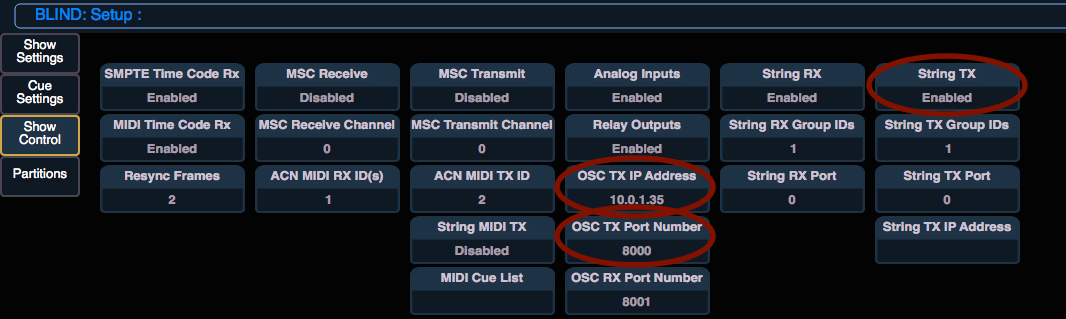
For your Eos system to output OSC, String TX must be enabled, and you need to tell it what IP address you want it to send OSC commands to. So under OSC TX IP Address, enter the IP address of the Qlab computer, and under OSC TX Port Number, enter 8000 (more on that later).
- On the Qlab computer, download an application called OSCRouter (written by Eos developer, Chris Mizerak) from the ETC Labs Git Hub page:
https://github.com/ElectronicTheatreControlsLabs/OSCRouter
In OSCRouter, configure it to look like this:

That is telling your Qlab computer to listen for any OSC commands on port 8000 that look like /eos/out/event/cue/1//fire and then convert them to the format /cue//start, and then re-broadcast those commands to the localhost IP address (127.0.0.1) on port 53000 (which is the port that Qlab listens on).
Remember to click the Apply button
Check out the OSCRouter documentation for more amazing features, and for more information about why we use /eos/cue/out/event/1/* for the incoming path, and /cue/%6/start for the outgoing path.
- In Qlab, make sure that your settings for your workspace look like this:
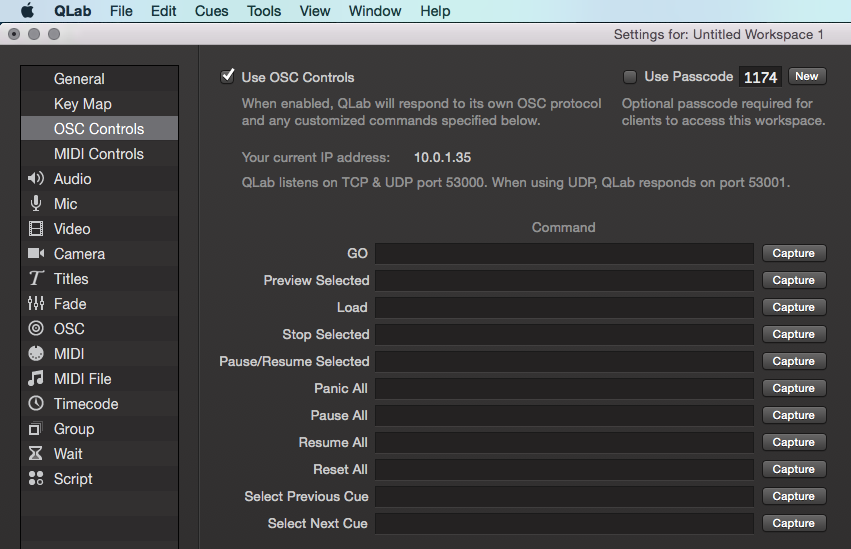
- You should be all set! When you fire a cue from Eos, double check that OSCRouter is making the conversion correctly. It should look something like this:

- /eos/out/active/cue/XX/* - The asterisk denoted the cue number that will be passed on the the outgoing Path. XX is your cue list, typically 1
- /cue/*/start - Received from Q Lab
- /cue/%6/start - Sent to Q Lab, see note about "%6"
- /eos/cue/XX/YY/fire - Sent to the Lighting Console to fire cues. XX is cue list, typically 1. YY is the Cue you intend to fire
"*" - Used for denoting an incoming variable that will be passed to outgoing by %
"%6" - means "the 6th thing of the input string". if you input "eos/out/event/cue/1/*", %3 equals event. if with the same input string you use %8 you will get an error (Unable to remap / invalid replacement) because it can't take the 8th object...
Here are some other examples that Chris made to show the things that OSCRouter can do:
