
[Video Demo]
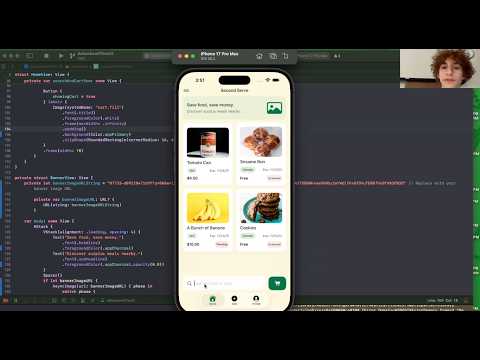
DevPost Link: DevPost
SwiftUI app that streamlines buying and donating surplus food. Includes Firebase-backed sign up/login, a tabbed dashboard feed, seller flow, and profile management.
- Email/password sign up via Firebase Auth.
- Dashboard feed with item cards and cart sheet.
- Sell flow (
SellScreen) for posting items. - Profile view with editable preferences and privacy options.
- Sample data models and view models for items, cart, and users.
- Local images live in
Assets.xcassets. Add a New Image Set and drop 1x/2x/3x PNGs or PDFs, then reference with the set name. - Show a bundled image in SwiftUI:
Image("PearBanner").resizable().scaledToFit(). - For remote images, use
AsyncImagewith a placeholder stored inAssets.xcassets.
- Xcode 15+ with iOS 17+ simulator or device.
- CocoaPods/Swift Package Manager not required (Firebase SDK already linked via project settings).
- Firebase project with iOS app configured.
- Clone the repo and open
SecondServe_DAHacks25.xcodeprojin Xcode. - Add your
GoogleService-Info.plisttoSecondServe/(replace the placeholder file). - In Xcode target settings, set your bundle identifier and team, enable Push/Background modes if needed, and ensure signing succeeds.
- Build and run on simulator or device.
SecondServe/SecondServeApp.swift: App entry, initializes Firebase.SecondServe/SignUp.swift: Email/password signup flow with status messaging and navigation to Dashboard.SecondServe/Dashboard.swift: Home tab with feed cards and cart sheet.SecondServe/SellScreen.swift: Listing flow for sellers.SecondServe/ProfileScreen.swift: Profile, preferences, and privacy controls.SecondServe/ViewModels.swift: ObservableObject view models for user, items, and cart state.SecondServe/Models.swift&SampleData.swift: Domain models and sample fixtures.SecondServe/ItemDetailView.swift,AddItemView 2.swift,ContentView 2.swift,ImagePicker.swift: Supporting views/components.
- Placeholder tests live in
SecondServeTests/. Add UI/unit tests as features mature.
- Firebase Auth and Firestore are referenced; ensure rules and API keys are set in your Firebase console.
- Update assets in
Assets.xcassetsfor branding (e.g.,PearBannerused in the feed).
- All image assets live in
Assets.xcassets. In Xcode, right-click the catalog, add a new Image Set, drop 1x/2x/3x PNGs or PDFs, and name the set (e.g.,PearBanner). - Reference images in SwiftUI with
Image("AssetName")orImage("AssetName").resizable()for layouts. Ensure the asset name matches exactly, including capitalization. - For remote images, wrap
AsyncImageor a custom loader; local placeholders should still live inAssets.xcassets. - To locate existing assets, open
Assets.xcassetsin Xcode’s navigator and inspect the named sets; the project currently usesPearBannerinDashboard.swift. - Example insertion in SwiftUI:
Image("PearBanner")
    .resizable()
    .scaledToFit()
    .frame(height: 160)
Contributors: Benn, Huey, Marc , Deepak