Back To Readme
- On the first run, the application will create a
Settings/OBS.json file.
- Retrieve your IP, Port and Password.
- Open OBS
- Select
Tools > WebSocket Server Settings
- Make sure
Enable WebSocket Server is checked
- Select
Show Connect Info
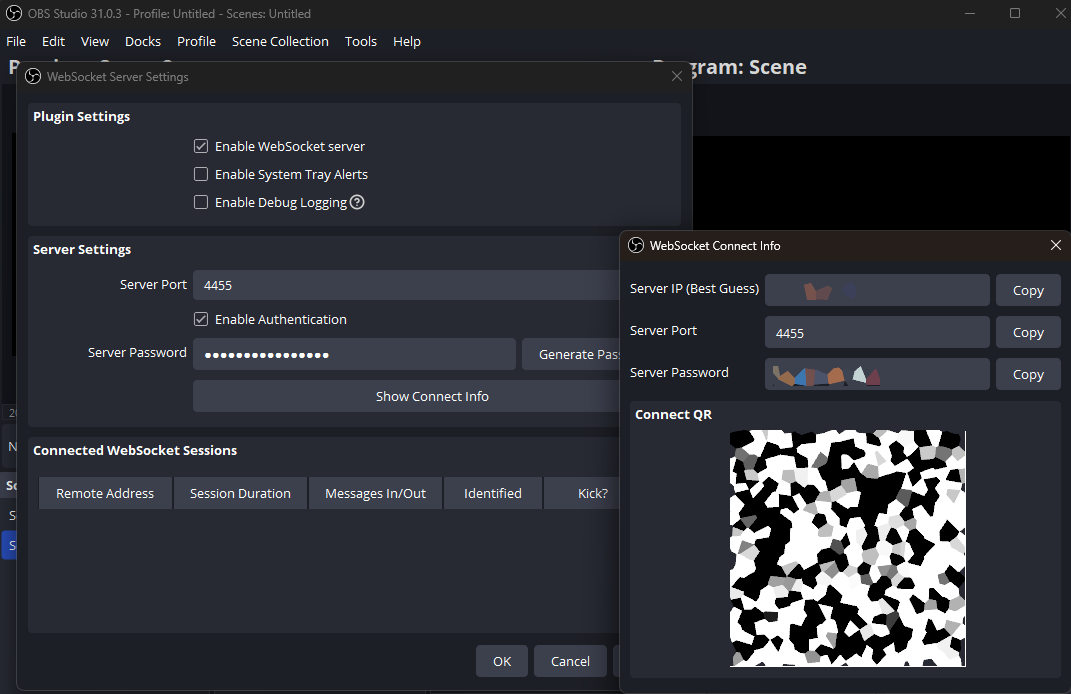
- Set the
Enabled setting to true in Settings/OBS.json.
- Add the
Server IP value to the Settings/OBS.json file's ServerIp setting.
- Add the
Server Port value to the Settings/OBS.json file's ServerPort setting.
- Add the
Server Password value to the Settings/OBS.json file's ServerPassword setting.
- On the second run, the application will automatically connect to OBS' real-time API and start receiving events.
{
  "OBS": {
    "Enabled": false,
    "ServerIp": "127.0.0.1",
    "ServerPort": 4455,
    "ServerPassword": "your-password"
  }
}