We use CircleCI to test our integrations. The tests for your integration run each time you commit to the content repo. The tests for every integration run every night. The easiest, and preferred, way to create a test playbook is by using the Demisto playbook editor.
When creating a test playbook:
- Every pull request must have a test playbook.
- Unit tests should be used to test smaller units of code. For more information, see Unit Testing.
After you create a test playbook, there are several tests you should run, including testing commands, verifying the results, and closing the investigation.
- Navigate to Playbooks and click New Playbook.
- Define a Playbook name.
- In the search field, type deletecontext and click Utilities.
- In the DeleteContext task, click Add.
- From the dropdown menu in the all field, select yes.
- Click OK and connect the Playbook Triggered task to the DeleteContext task.
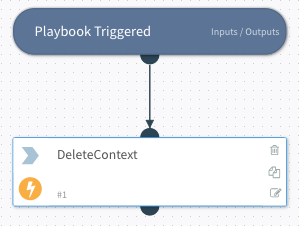
It's important to test as many commands of the integration as possible as tasks, and each command should have a task. For example, the IPIinfo integration is a command and requires a task, (the !ip command).
- Navigate to Playbooks and click New Playbook.
- In the search field, type ipinfo and click ip.
- In the ip task, click Add to edit the configuration options.
- Select an entity that will produce the most consistent results in the ip field, such as 8.8.8.8, the Google DNS server.
- Click OK to save your changes.
- Connect the DeleteContext task to the ip task.
After you build the command, verify that you have received the results that you expect.
- Open the Task Library and select Create Task.
- Configure the new task.
| Configuration | Action |
|---|---|
| Conditional | Select the Conditional button to display the condition options. |
| Task Name | Type a task name. |
| From previous tasks | Click {} to display the Select source for tool. The Select source for tool displays the #2 ip task that you created. |
| 2 ip | Click to display the ip task configurations. |
| IP | Click Address and click Close. The IP.Address is displayed in the From previous tasks field. This is the Context Path. |
| From previous tasks | Wrap the Context Path using this format ${IP.Address}. Wrapping the Context Path tells Demisto to retrieve the value located in the curly brackets. |
| As value | Type 8.8.8.8 and click ✅. |
Note: If you need to edit the value in a field, you can click on the value and edit it. For example, click on the value in the From previous tasks field and edit the ${IP.Address} value.
- Optional: If you need to filter or format the result, click Filters and Operations located in the Select source for dialog box.
- Click Save.
- Connect the ip task to the Verify Command Results task.
- Navigate to Playbooks and click New Playbook.
- In the search field, type closeinvestigation and click BuiltIn Commands.
- For closeInvestigation, click Add.
- Click the {} in the id field.
- Click Incident details and find ID.
${incident.id}is inserted into the id field. - Click Close and click OK.
- Connect the Verify Command Results task to the closeInvestigation task.
- Choose the yes label name for the condition and click Save.
Demisto uses a standard naming convention for playbook tests that follows this format: Integration_Name-Test.
- Click Save Version.
- Exit the playbook editor.
- Export the playbook by clicking
 .
.
- In the YAML file that you created, edit the
idso that it is identical to thenamefield. - Modify the value in the
versionfield to -1 to prevent user changes. - Using the example above, the top of your YAML should look like this:
id: IPInfo-Test
version: -1
name: IPInfo-TestThe CircleCI is set to run integration tests from the conf.json file. The conf.json file is located in the Tests directory.
The following is an example of a correct conf.json entry for an integration:
        {
            "integrations": "Forcepoint",
            "playbookID": "forcepoint test",
            "timeout": 500,
            "nightly": true
        },
The following table describes the fields:
| Name | Description |
|---|---|
| integrations | The ID of the integration that you are testing. |
| playbookID | The ID of the test playbook that you are running. |
| timeout | The time in seconds to extend the timeout to. |
| nightly | Boolean that indicates if the test should be part of only the nightly tests. |
- If your integration must be configured to be executed, you must add the code below to the content-test-conf/conf.json file. The field names must match the parameters that you assigned to your integration.
{
  "name": "carbonblack-v2",
  "params": {
    "serverurl": "https://example.com:30035/",
    "apitoken": "exampleapikey",
    "insecure": true,
    "proxy": false
  }
}- Commit, push your changes, and cross your fingers. If everything works well, you should have a "Green Build".
Example of a Test Playbook - https://github.com/demisto/content/blob/master/TestPlaybooks/playbook-Carbon_Black_Response_Test.yml
Example of a Playbook Image - https://user-images.githubusercontent.com/7270217/41154872-459f93fe-6b24-11e8-848b-25ca71f59629.png
